Verified, Approved or Sandbox: Deep Rock Galactic mod categories explained
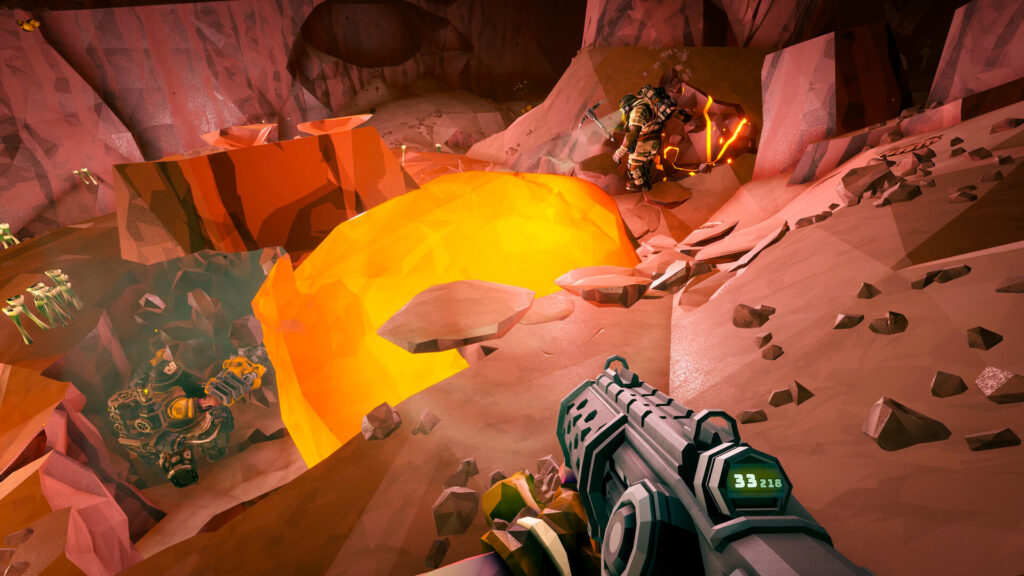
This guide is for anyone who has opened the Modding Menu in Deep Rock Galactic and wondered why some mods sit under different headings. By the end you will know what Verified, Approved and Sandbox mean, which ones are safe to bring into any lobby, and which ones need their own save.
One thing to get straight first: these categories apply to community mods hosted on mod.io, not to the weapon upgrades and overclocks you unlock inside the game itself. Those are game items, not mods, and they are not part of this system.
Where the categories live
Community mods are hosted on mod.io. You reach the game’s mod.io page from the in-game Modding Menu, and you need a mod.io account linked to your game account before you can subscribe to anything. Once linked, subscribing works the same way as subscribing to any other mod.io listing.
Every mod starts life in the Sandbox category. It stays there until the moderation team and the wider community have reviewed it and decided it belongs somewhere else. A mod can sit in Sandbox for a long time before it moves, so do not assume a Sandbox tag means something is broken.
Verified mods
Verified is the category for mods that do not touch balance or progression. Think quality-of-life tweaks, accessibility visuals, localised graphics, and cosmetic or audio changes. Because none of these affect what you earn or how missions play out, you can join any lobby with them active and nobody else needs to have them installed to play alongside you.
Approved mods
Approved covers mods that do change gameplay, but in ways the moderation process considers moderate and in line with normal progression. This includes challenge or alternative modes, weapon stat changes, and other adjustments that still keep rewards sensible. The catch is that everyone in the mission needs the same mods active. If you join a host who does not have your Approved mod running, the game will simply disable it for that session.
Sandbox mods that touch rewards
Sandbox is not just a holding pen for new mods. It is also the permanent home for anything that changes rewards or mission payouts, or that directly unlocks items. These mods are powerful enough that the game keeps them walled off from your normal save.
To use this kind of Sandbox mod you need a separate Sandbox save, made through Save Game Profiles. Loading your regular save will disable these mods automatically. Switching them on prompts you to change save profiles, so you always know when you have left your normal progress behind.
Achievements
Players report that running Approved or Sandbox mods turns off achievements for that session. If achievement progress matters to you, check this before you enable anything outside the Verified category, and consider keeping a mod-free save for achievement runs.
Turning mods on and off
You manage all of this from the Space Rig, either through the Modding Menu or the Modding Support tab on the ESC menu. The steps are straightforward:
- Open the Space Rig and bring up the Modding Menu, or press ESC and go to the Modding Support tab.
- Find the mod you want to toggle and switch it on or off.
- If the mod is Sandbox and touches rewards, confirm the prompt to switch to a Sandbox save profile.
- Let the game reload you to the start of the rig. This happens without a full game restart.
- Check the mod’s status in the menu again before heading into a mission, especially if you are about to join someone else’s lobby.
Back up your save before you start experimenting with Sandbox mods, particularly anything that unlocks items directly. Save Game Profiles keep your regular save separate, but it is still good practice to know you have a clean copy to fall back on.
If something goes wrong
If a mod will not activate, check whether it needs a Sandbox save and whether you are currently loaded into the right profile. If an Approved mod disappears mid-session, it is likely because the host does not have it running, which is expected behaviour rather than a fault. If the game feels unstable after enabling several mods at once, disable them one at a time through the same menu and reload the rig to isolate the cause. To remove a mod entirely, unsubscribe from it on its mod.io page and it will stop loading next time you reload the rig.
Get into the habit of checking which category a mod sits in before you subscribe, not after. It takes a few seconds and saves you from turning up to someone else’s lobby with a mod that is about to be switched off anyway.