RimWorld load order: Harmony, frameworks and content mods
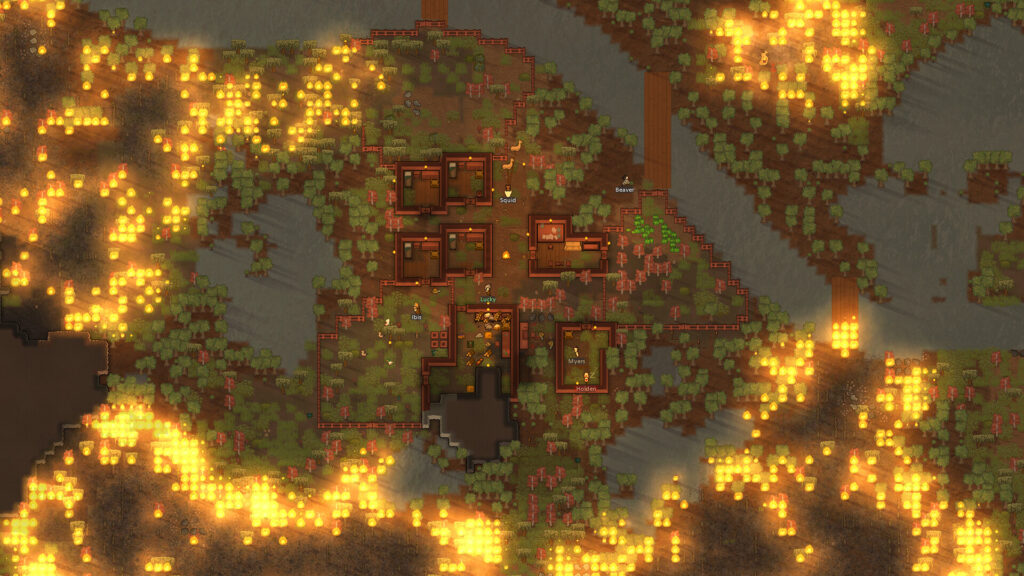
This guide is for RimWorld players running more than a handful of mods and hitting crashes, missing textures or odd behaviour that only shows up once several mods are active together. By the end you will know the general order mods go in, how to check what each mod expects from the others, and how to keep a note of any changes you make by hand.
Before you touch your mod list, back up your save. Load order problems can corrupt a save or make it unloadable, and a backup means you can always step back to a working state.
Why load order matters
RimWorld loads mods in sequence, and each mod can change what the ones before it set up. If a mod that adds new content loads before the tool it depends on, the game may not recognise the content properly, or it may ignore patches entirely. Most crashes blamed on “too many mods” are actually load order issues rather than a genuine incompatibility.
The common load order
There is a widely used general order that most mod lists follow. It is not a strict rule for every single mod, but it is a sound starting point and matches how the game itself is structured.
- Harmony. This library lets other mods patch the game’s code safely, so it needs to load before almost anything else.
- Core and the official expansions. These form the base game content that everything else builds on.
- Frameworks and libraries. These are mods that do not add content on their own but give other mods the tools to work, such as shared patching systems or UI libraries.
- Content mods. These are the mods that add new items, factions, events, or mechanics, and they usually need to load after the frameworks they rely on.
Within each group you may still need to adjust individual mods, which brings in the next step.
Check what each mod page says
Many mod authors state load-order needs directly on the mod’s page, often as a short note such as “load after” a specific framework or another content mod. These notes exist because the author has tested their mod against known conflicts, so treat them as instructions rather than suggestions.
Read these notes before you add a mod to your list, not after something breaks. If a mod depends on a framework, make sure that framework is installed and already placed higher in your load order.
Using a mod manager to sort things
Sorting a large mod list by hand is slow and easy to get wrong. Community mod managers such as RimSort can read the stated dependencies and load-order notes for your installed mods and arrange them automatically. They can also flag missing requirements, such as a content mod that needs a framework you have not installed.
Run a sort whenever you add or remove mods, not just when you first set up your list. New additions can shift where other mods need to sit, even ones you have not changed.
Keep a written record of manual changes
If you move a mod manually, write down what you changed and why. A simple text file with the mod name, the change, and the reason is enough. This matters because automatic sorting tools may not know about a manual fix you made for a specific conflict, and a re-sort could undo it without you noticing until problems return.
This record also helps if you need to troubleshoot later. Instead of guessing which of twenty changes caused an issue, you can check your notes and narrow it down quickly.
If something goes wrong
If the game crashes on load or refuses to start, open your mod manager and check for an error log or a flagged missing requirement first. This is often faster than disabling mods one by one.
If no single error stands out, try reverting to the backup you made before changing the load order, then reintroduce mods in small groups, running the sort tool after each addition. This makes it easier to spot which mod or combination caused the problem.
To undo a change entirely, remove the mod from your active list rather than deleting its files, unless you are certain you will not need it again. Keeping the files on disk but inactive means you can re-enable it later without downloading it again.
A practical habit worth keeping: whenever you download a new mod, read its page fully before adding it, note any dependencies it needs, and only then run your sort tool. A few minutes of reading saves a lot of time spent reading crash logs afterwards.
 RimWorld mods from the Steam Workshop: subscribing, the mod list and a first setup
 Steering wheels and controllers in BeamNG.drive after 0.40: what changed, what the hotfixes fixed, and how to set up
 XCOM 2 Mods: How to Use the Alternative Mod Launcher
 Reading log.txt in Farming Simulator 25: finding why a mod was rejected or crashed, and what to send the author