Total War: Warhammer III mods: using the launcher’s mod manager and the Workshop
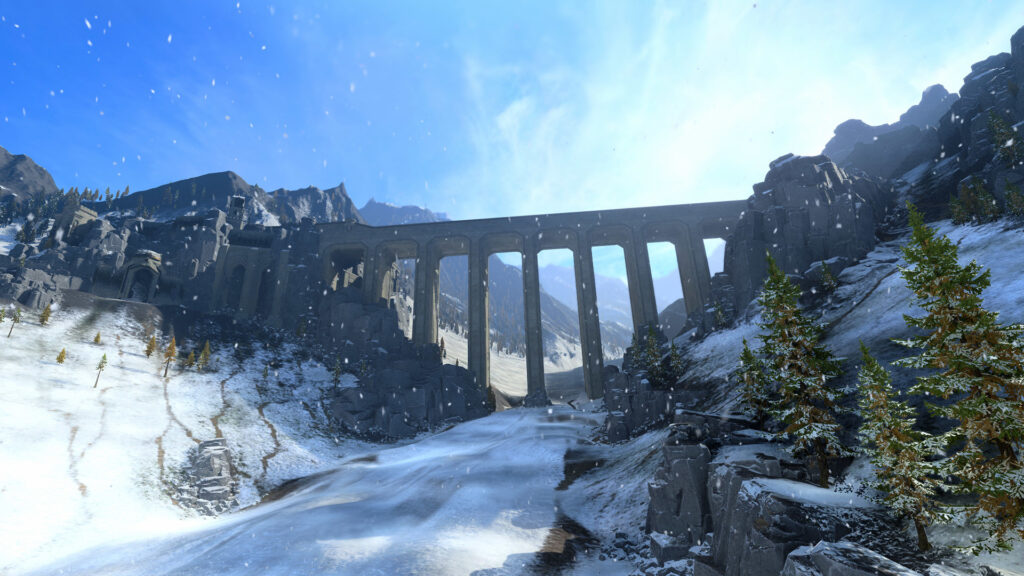
This guide is for players who want to try community mods for Total War: Warhammer III but have never touched the launcher’s mod manager before. By the end you will know where mods come from, how to switch them on safely, and what to do if a mod breaks your game.
Where mods come from
Mods for Total War: Warhammer III are distributed through the Steam Workshop. Each mod has its own Workshop page, written and maintained by the person who made it. That page is the safest place to get the mod, since it will always have the version the author intends players to use, along with any notes they have added about compatibility.
Subscribing to a mod on its Workshop page downloads it to your machine automatically through Steam. You do not need to move any files yourself. The mod will not do anything in-game, though, until you turn it on inside the launcher.
Switching mods on in the launcher
The launcher that opens before the game starts has a mod manager section. This is where every mod you have subscribed to on the Workshop shows up, and where you choose which ones are actually active for your next play session.
A simple routine for getting a new mod running looks like this:
- Open the mod’s Workshop page and subscribe to it through Steam.
- Launch the game so Steam has a chance to finish downloading the mod files.
- Open the launcher’s mod manager and find the mod in the list.
- Switch the mod on, along with any other mods it needs.
- Start a new campaign or load a save to check it is working as expected.
Mods you have not switched on sit there doing nothing, so it is fine to subscribe to several and only enable the ones you are testing.
Checking required mods
Many mods depend on other mods to work properly. The Workshop page for a mod will usually list these required mods near the top or in the description, often under a heading like “requirements” or “dependencies”.
Before you enable a mod, read its page properly. If it lists other mods as required, subscribe to those too and make sure they are switched on in the mod manager alongside the main mod. Missing a required mod can mean the mod fails to load or causes odd behaviour in battles or the campaign map.
Start with a few mods and test
It is tempting to subscribe to a long list of mods in one go, but this makes problems hard to trace. If the game crashes or a unit looks wrong, you will not know which of ten mods caused it.
Enable two or three mods at a time. Load into the campaign map and a battle, and check nothing has broken. Once you are confident those are stable, add a few more and repeat the check. This slower approach takes a little longer at the start but saves far more time later when something does go wrong.
Keep a mental note, or a written one, of what you enabled and when. That list becomes useful if you need to work backwards to find the culprit.
Back up your saves
Mods can change unit stats, campaign mechanics, or how factions behave, and a poorly tested mod can corrupt a save or make a campaign unplayable. Before you enable any new mod, copy your save files to another folder on your drive.
This takes a minute and means that if a mod ruins a campaign you care about, you can switch the mod off, restore the backup save, and carry on as if nothing happened. Treat this as a habit every time you add mods, not just the first time.
If something goes wrong
If the game crashes on launch or a campaign behaves strangely after adding mods, go back into the launcher’s mod manager and disable the most recently added mods first. Load the game again and see if the problem disappears.
If disabling the newest mods does not fix it, work through the rest of your active mod list one by one, checking required mods are not missing or out of order. If a mod is clearly broken, unsubscribing from it on the Workshop removes it from your subscribed list, and it will then also vanish from the mod manager.
To undo any mod change completely, switch every mod off in the mod manager and load your backed-up save. This returns you to an unmodded state you know was working.
If you plan to play online, check the mod’s own page for any warning about multiplayer or ranked use, since some mods are not meant for those modes and using them there can cause problems with matchmaking or bans.
Keep your mod list small and documented, and treat every new addition as something to test on its own before stacking more on top.
 Modding Skyrim Special Edition for the first time: accounts, managers and a careful first batch
 Garry’s Mod Workshop addons: subscribing, collections and keeping the list tidy
 Profiles, saves and the ‘mod missing’ dialog: keeping an ETS2 or ATS career safe from betas, removed mods and updates
 Installed a truck mod but it is not in the dealer? The five reasons, and how truck mods appear in ETS2 and ATS