Modding Skyrim Special Edition for the first time: accounts, managers and a careful first batch
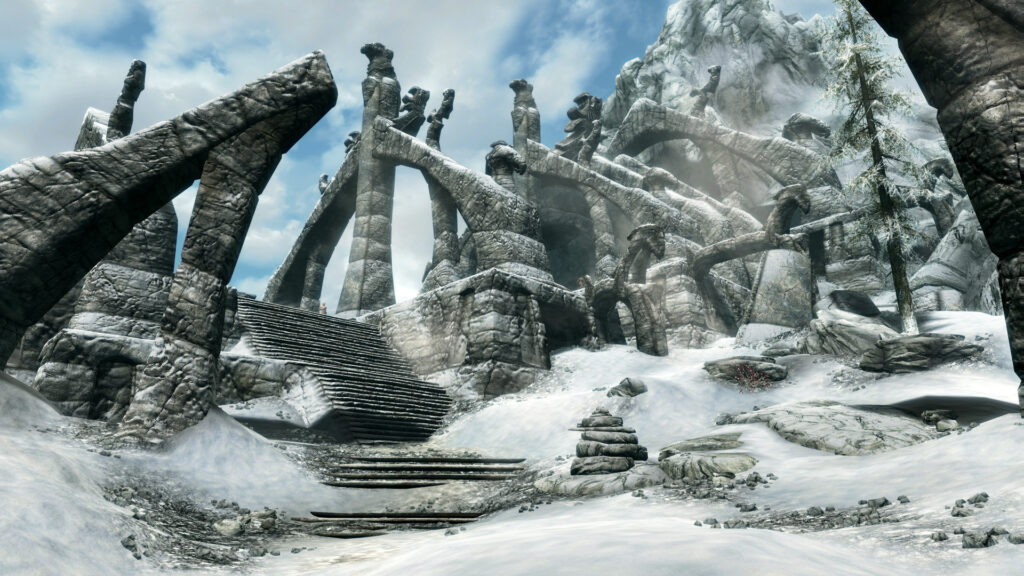
This guide is for anyone who owns Skyrim Special Edition and has never installed a mod before. By the end you will have a working account, a mod manager set up, and a small first batch of mods installed in a way you can switch off or remove without touching your game files by hand.
The temptation when you start out is to copy files straight into the Data folder. Resist it. A mod manager tracks every file a mod adds, lets you turn mods off one at a time to find a problem, and can remove a mod completely when you are done with it. Manual copying leaves loose files scattered through your game folder with no record of what came from where, which makes troubleshooting much harder later.
Choosing a mod manager
Two managers are used for this game: Vortex and Mod Organizer 2. Both work with downloads from Nexus Mods, which is where most Skyrim mods are hosted. You will need a free Nexus Mods account to download from the site and to use either manager’s one-click download feature.
Vortex is made by the same team behind Nexus Mods and integrates closely with the site. Mod Organizer 2 uses a different approach, keeping each mod in its own separate folder and only showing the game a combined view of them, which some modders prefer for how cleanly it can undo changes. Either is a reasonable starting point; pick one and learn it properly rather than switching between the two early on.
Setting up your account and manager
- Create a free account on Nexus Mods if you do not already have one.
- Download and install either Vortex or Mod Organizer 2, then point it to your Skyrim Special Edition installation when it asks.
- Log the manager into your Nexus Mods account so it can handle downloads directly from mod pages.
- Pick a small handful of mods from the author’s own Nexus Mods page, no more than four or five, and install them through the manager.
- Launch the game and play for a while before adding anything else.
Starting small and keeping notes
A small first batch makes problems easy to spot. If the game crashes or behaves oddly after installing twenty mods at once, you have no quick way to know which one caused it. With four or five, you can disable them one at a time through the manager until the game behaves again.
Keep a short written list of what you installed and why, even if it is just a few lines in a text file. Note the mod name and a one-line reason you added it. This becomes useful months later when you want to add more mods or work out what something does.
SKSE64 and when you need it
Some mods, usually ones that change scripting or add new menus, need the Skyrim Script Extender for Special Edition, known as SKSE64. You do not need to install it up front. Install it only when a mod page tells you it is required. Once it is installed, always launch the game through SKSE64 rather than the normal game shortcut, since starting the game the ordinary way will skip the extender entirely and any mod relying on it will not work.
Back up your saves first
Before your first modded session, copy your existing saves folder somewhere safe, such as an external drive or a separate folder outside the game’s install location. Mods can occasionally corrupt a save or make an existing save unstable, particularly once you start removing mods partway through a playthrough. A backup means a bad session costs you nothing beyond redoing the copy.
If something goes wrong
If the game crashes on launch or in the main menu, disable your most recently added mod first and try again. Work backwards through your list one mod at a time rather than disabling everything at once, since that tells you exactly which mod caused the issue.
If a mod needed SKSE64 and you launched through the normal shortcut, close the game and relaunch through SKSE64 instead. If problems started after you installed several mods together, that is exactly why a short list and a small batch matter: check your notes and disable them in the reverse order you added them.
Both Vortex and Mod Organizer 2 let you uninstall a mod cleanly, removing its files rather than leaving them behind. Use that function rather than deleting files manually, since manual deletion can leave orphaned files that cause confusion later.
Once your first batch runs reliably for a proper play session, add a few more mods at a time rather than returning to large batches. Slow and documented beats fast and untraceable every time you sit down to mod this game.
 Reading log.txt in Farming Simulator 25: finding why a mod was rejected or crashed, and what to send the author
 Paradox Mods in Cities: Skylines II: browsing, playsets and installing from the game
 RimWorld mods from the Steam Workshop: subscribing, the mod list and a first setup
 Modding Fallout: New Vegas: the 4GB patcher, xNVSE and a mod manager