Modding Fallout: New Vegas: the 4GB patcher, xNVSE and a mod manager
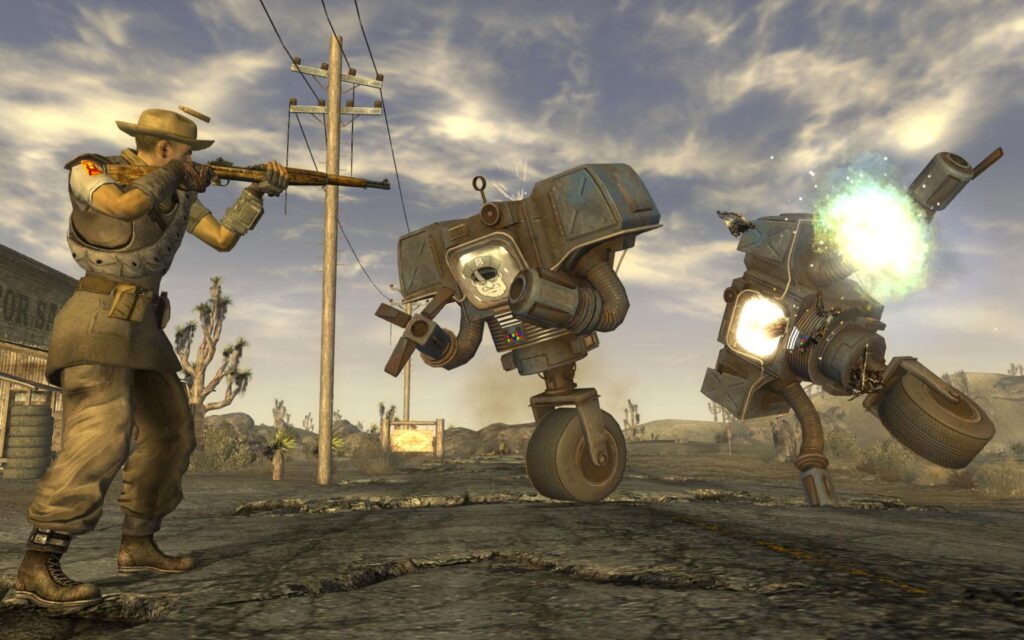
This guide is for anyone who owns Fallout: New Vegas and wants to start modding it without breaking the game on day one. By the end you will have a stable base set up: more memory for the game to use, the script extender many mods depend on, and a mod manager to keep everything organised. It covers the order to do things in and how to test as you go, rather than installing fifty mods and hoping for the best.
Back up your saves first
Before you touch anything, copy your save folder somewhere safe. This takes two minutes and means that if a mod corrupts a save or the game stops loading, you have not lost your progress. Keep this backup separate from the game folder itself, on another drive or in cloud storage, so a reinstall does not wipe it out by accident.
Start with the 4GB patcher
Fallout: New Vegas is a 32-bit game, which limits how much memory it can use by default. That ceiling causes crashes once you add textures, scripts and extra content on top of the base game. The 4GB patcher raises that limit so the game can actually use more of your system’s memory, and most modding guides treat it as the first thing you apply before anything else.
Get it from the author’s own release page rather than a random download site. Apply it to your own game installation, not to a copy you are unsure about, and make sure the game is closed while you do it.
Install xNVSE next
xNVSE, the New Vegas Script Extender, adds functions that the base game does not have. A large share of the mods you will want later, from gameplay tweaks to bug fixes, assume xNVSE is present and simply will not work without it. It is not optional in the way some mods are; treat it as part of the base setup alongside the 4GB patcher.
Download it from the author’s page, not a mirror, since script extenders change often enough that outdated copies cause mismatches. Follow the installation instructions on that page exactly, since xNVSE typically needs its files placed alongside the game executable rather than inside a standard mod folder.
Pick a mod manager: Mod Organizer 2 or Vortex
Once the patcher and xNVSE are in place, you need a way to install and remove mods without them turning into a tangled mess inside your game folder. Mod Organizer 2 and Vortex both do this job, keeping mod files separate from your actual game installation so you can disable or remove anything cleanly if it causes a problem.
Either one works. Mod Organizer 2 is popular for its strict separation between mods and the game directory, which makes uninstalling painless. Vortex integrates more directly with the game folder and suits people who want a simpler interface. Pick one and stick with it rather than mixing the two, since they organise mods differently and switching halfway through gets confusing fast.
Add mods in small batches and test
Once your manager is set up, resist the urge to install everything you have bookmarked in one go. Add mods in small groups and launch the game after each batch to check it still starts and behaves normally.
- Install one or two mods through your manager.
- Enable them and launch the game to confirm it loads without crashing.
- Play for a short session to check the mods work as expected.
- If everything is stable, add the next small batch and repeat.
- If something breaks, you know exactly which batch caused it.
This slower approach takes more patience but saves you from the alternative: forty mods installed at once, a crash on the main menu, and no way to know which one is responsible.
If something goes wrong
If the game crashes on launch after adding the patcher or xNVSE, check that both were applied to the correct game folder and that no antivirus software has quarantined any files. If a specific mod causes crashes, disable it through your mod manager rather than deleting files by hand, since managers track what each mod added and remove it cleanly. If your game stops loading a save entirely, go back to the backup you made at the start rather than trying to force a broken save to work.
Uninstalling is straightforward with either manager: disable or remove the mod from the list and the manager handles the rest. This is the main reason to use one instead of dropping files straight into the game directory, where removing a mod later means hunting down every file by hand.
Keep a short note of what you install and in what order. When a mod list grows past a dozen entries, that simple log is often the fastest way to work out what changed right before something went wrong.
 Reading log.txt in Farming Simulator 25: finding why a mod was rejected or crashed, and what to send the author
 Paradox Mods in Cities: Skylines II: browsing, playsets and installing from the game
 Fallout 4 modding for the first time: mod managers, Nexus Mods and settings
 The BeamNG.drive Mod Manager explained: active, inactive, unpacked, and the habits that keep a long list working