Paradox Mods in Cities: Skylines II: browsing, playsets and installing from the game
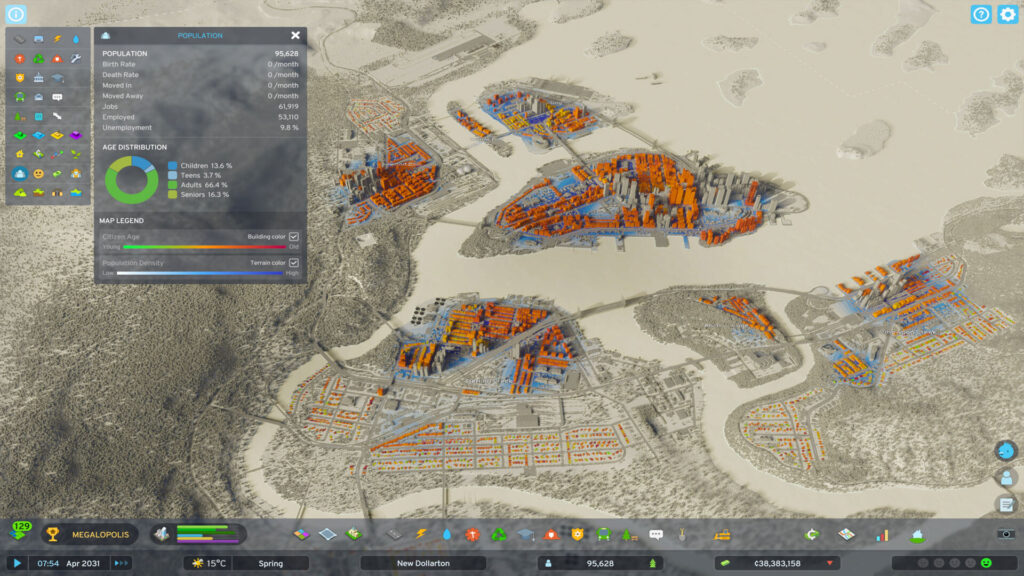
This guide is for Cities: Skylines II players who want to add mods but have not used the in-game Paradox Mods platform before. By the end, you will know how to browse mods, build a playset and get mods active without digging through separate folders by hand.
Unlike many city builders, Cities: Skylines II handles mods through its own built-in storefront rather than a third-party manager. That makes the process simpler, but it still pays to understand how the pieces fit together before you start adding things to your save.
What Paradox Mods actually is
Paradox Mods is the official platform built into Cities: Skylines II. Instead of downloading mod files from various sites and placing them in folders yourself, you browse and install everything from inside the game. The catalogue includes both small quality-of-life tweaks and larger overhauls, depending on what creators have published.
To use it, you need a Paradox account. If you have never signed in to a Paradox game before, you will be asked to create one and link it the first time you open the mods menu. This is a one-off step; after that, your account stays signed in on that machine.
Browsing and reading mod pages
Once signed in, you can search and filter the catalogue from within the game. Take your time scrolling through categories rather than installing the first thing that looks useful. Each mod has its own page with a description, and that page is where the important detail lives.
Always read the mod’s page before installing it. Look for:
- Any stated requirements, such as other mods it depends on to function.
- Known conflicts with other popular mods, if the author has listed any.
- Notes about save compatibility or whether it is safe to remove later.
- Any warning about multiplayer or shared-save use, since some mods are not meant for online or co-op contexts.
Authors update these pages over time, so this is also where you will find the most current guidance rather than relying on general assumptions.
Understanding playsets
A playset is a saved group of mods. Rather than switching individual mods on and off one at a time, you build a set and activate the whole thing together. This is useful if you like to run different setups, for example a clean vanilla-style playset for one city and a heavily modded one for another.
You can create multiple playsets and switch between them depending on what you want to play. This keeps experimental or heavy mods separate from a stable setup you trust for your main save.
Installing and activating mods
Here is the general process for getting a mod running in Cities: Skylines II:
- Open the in-game Paradox Mods menu and sign in with your Paradox account if you have not already.
- Search or browse for the mod you want and open its page to check requirements and any warnings.
- Install the mod from its page.
- Add the mod to the playset you want to use, creating a new playset first if needed.
- Activate that playset.
- Restart the game if prompted, since some mods only load fully after a fresh launch.
Before loading a heavily modded playset into a save you care about, back up your save file. Mods can occasionally interact with city data in unexpected ways, and having a clean copy means you can roll back without losing progress.
If something goes wrong
If a mod causes crashes, visual glitches or odd behaviour in your city, start by deactivating that mod in your playset and see if the problem clears. Work through mods one at a time rather than switching several off at once, so you can actually tell which one was responsible.
If the whole game fails to launch properly after adding mods, try switching back to a simpler or empty playset and restart. This isolates whether the issue is mod-related before you start troubleshooting anything else.
Check the mod’s page again too. If other players have reported the same issue, the author may have already posted a fix or a note about a conflicting mod.
Removing mods
To undo a change, deactivate the mod in your playset rather than deleting your whole setup. This is non-destructive and lets you switch it back on later if you decide you want it after all. If a mod caused save corruption, reload your backup rather than trying to patch the live file.
Keep your playsets named clearly, for example by purpose or by the save they belong to. A tidy set of playsets saves more time in the long run than any individual mod ever will.
 Fallout 4 modding for the first time: mod managers, Nexus Mods and settings
 BeamNG.drive photo mode: better screenshots of your cars and better previews for mod pages
 Project Zomboid mods from the Workshop: subscribing, enabling and the Mods menu
 Steering wheels and controllers in BeamNG.drive after 0.40: what changed, what the hotfixes fixed, and how to set up