Risk of Rain 2 Mods with r2modman: Setup and Profiles
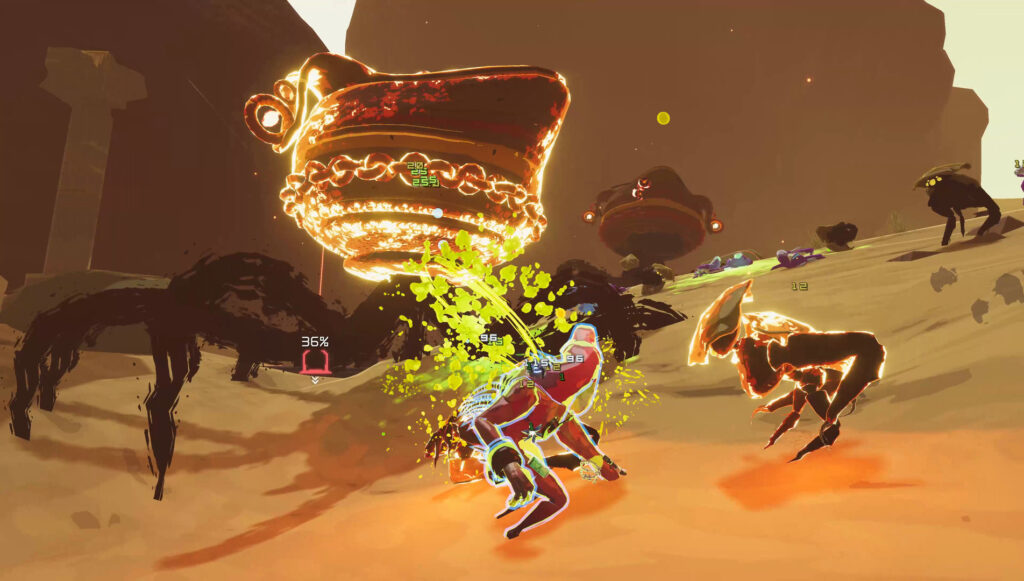
This guide is for Risk of Rain 2 players who want to add mods without breaking their game or losing a clean install to fall back on. By the end you will know how mods reach your game through r2modman, why profiles matter, and how to test new mods without wrecking a setup that already works.
Where mods come from
Risk of Rain 2 mods live on Thunderstore, the site built specifically for this game and others that use the same modding framework. Mod authors upload their work there directly, with version history and descriptions attached. Stick to Thunderstore itself rather than random downloads elsewhere, since that is the only place you can be reasonably sure a mod matches what the author actually built.
r2modman is the manager that talks to Thunderstore for you. Instead of manually unpacking files into your game folder, you browse mods inside the app, click install, and it handles the download and placement. It also installs BepInEx automatically when needed. BepInEx is the modding framework that most Risk of Rain 2 mods depend on to run; without it, the mods you add simply will not load.
Setting up r2modman
Before installing anything, back up your save data. Mods are generally safe, but a backup means a bad install never costs you a run or an unlocked item you cared about.
- Install r2modman and point it at your Risk of Rain 2 installation when it asks.
- Let it install BepInEx for the game if it offers to, since most mods need it.
- Open the mod browser inside r2modman and search for a mod by name or category.
- Click install on the mod you want, then do the same for a small handful of others you are confident about.
- Launch the game through r2modman, not through Steam or another launcher directly, so the mods actually load.
Why profiles matter
A profile in r2modman is a separate, self-contained set of mods. Switching profiles switches your whole mod list, so you can keep one profile for serious runs and another for experimenting.
This matters because mods can conflict with each other or with updates to the base game. If you only ever have one giant list of mods, a single bad addition can make the whole thing stop working, and you will not know which mod caused it. Profiles let you isolate changes.
Start small and test
Add a handful of mods first, not twenty at once. Launch the game and play a short run to check everything loads and behaves as expected. If something looks wrong, such as a crash on launch or a menu that will not open, you know it is one of those few mods, not a mystery buried in a long list.
Once you are happy, add a few more and repeat the process. This is slower than installing everything you find in one go, but it means you always know roughly which mod to blame if things break.
Keep a working profile
Once you have a stable set of mods that you know works, leave that profile alone. Create a new profile for testing anything new, rather than adding untested mods straight into the list you rely on for proper runs.
This way, if a new mod causes a crash or breaks saves, you switch back to your working profile and carry on. You are not stuck reinstalling everything from scratch or trying to remember which mods were in your last good setup.
Keep in mind that some games and modes treat mods as grounds for a ban in online or competitive contexts. If Risk of Rain 2 has any online mode where mods are not welcome, keep your modded profile for offline or private games and use an unmodded profile elsewhere.
If something goes wrong
If the game crashes on launch, open r2modman and disable mods one at a time, starting with the most recently added, until the game starts again. That tells you which mod is causing the problem.
If BepInEx itself seems to be the issue, try reinstalling it through r2modman rather than editing files by hand. If a profile becomes a mess you cannot untangle, switch to your clean working profile and start a fresh test profile instead of trying to fix the broken one.
Undoing changes
To remove a mod, open r2modman, find it in your profile’s mod list, and uninstall it from there. To remove mods entirely, delete the problem profile, or disable BepInEx for a completely vanilla launch through Steam.
Keep your saves backed up regardless of how confident you feel about a mod list. A five minute backup is far less hassle than losing progress to a setup that looked fine until it did not.
 How to install BeamNG.drive skins, and why some need another mod first
 Steering wheels and controllers in BeamNG.drive after 0.40: what changed, what the hotfixes fixed, and how to set up
 How to install Euro Truck Simulator 2 and American Truck Simulator mods: the folder, the load order and the version warning explained
 Fallout 4 modding for the first time: mod managers, Nexus Mods and settings