How to install Euro Truck Simulator 2 and American Truck Simulator mods: the folder, the load order and the version warning explained
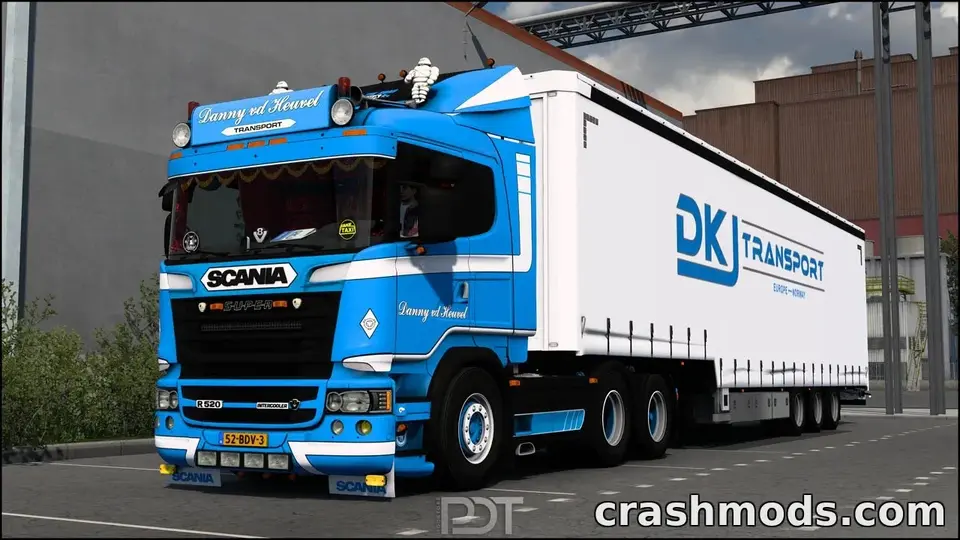
Euro Truck Simulator 2 and American Truck Simulator share one engine, one mod format and one Mod Manager, so this guide covers both. Installing a mod is a two-minute job. Getting a long mod list to behave is about one thing most guides skip: the load order. Here is the whole process, including the version warning that scares people for no reason.
Where mods go
Mods live in the mod folder (singular) inside the game’s documents folder:
- ETS2:
Documents\Euro Truck Simulator 2\mod - ATS:
Documents\American Truck Simulator\mod
The game accepts two kinds of file: .scs archives, which are the native format, and plain .zip files. Both go into the folder as they are. Do not extract them, and do not create subfolders; the Mod Manager only scans the top level. If a download arrives as a zip that contains another zip or an .scs file inside, that inner file is the mod, and the outer zip is just packaging.
Switching a mod on
Start the game, select your profile, and click Mod Manager before you press Play. The left column lists every file in the folder; the right column is what is active. Select a mod and press the arrow (or double-click) to activate it, then confirm. A newly activated mod takes effect when the profile loads. Mods are per profile, so a second profile starts with an empty active list; that is useful for testing.
The version warning, explained
Every mod declares the game version it was made for. When the game is newer, the Mod Manager marks it with a warning sign and a message that the mod was created for a different version. This is information, not a block. Most mods made for 1.61 run on the 1.62 beta without any change, because a point update rarely touches the files a trailer pack, a sound mod or a paint job uses. The warning becomes serious in two cases: map mods after a map rework (the UK rework will be one), and interior or material mods after a lighting change (1.60’s Improved Material System was one). For anything else, activate the mod, load the profile and see.
Load order: the rule
When two mods change the same file, the one higher in the active list wins. That single rule explains almost every “the mod does not work” complaint in the SCS forums. A sensible order from top to bottom:
- Map mods and their required files (the map itself first, then its model and definition packs). A map’s own instructions say what order its parts need; follow them exactly.
- Fixes and patches that are meant to override something below them.
- Trucks, trailers and cargo packs.
- Traffic mods, with a “no default traffic” mod above the packs it is meant to filter, if its author says so.
- Sounds, skins, graphics, weather, interiors.
If a map mod does not load, the most common reason is that one of its required packs sits below it. If a truck shows the wrong interior, an interior mod is above the truck that overrides it. Reordering is drag-and-drop in the Mod Manager and needs no restart beyond reloading the profile.
Keeping profiles safe
Profiles live in Documents\Euro Truck Simulator 2\profiles (or steam_profiles if Steam Cloud saves are on), and the same under American Truck Simulator. Before you switch to an open beta or activate a big map mod, copy the profile folder somewhere else. A profile saved with a map mod active will complain if that mod is later removed; the game offers to continue, but the truck can end up in the middle of nowhere. Copying the folder first turns a lost weekend into a two-minute restore.
Removing a mod
Deactivate it in the Mod Manager first, load the profile once so the game saves without it, then delete the file from the folder. Deleting the file while the mod is still active is what produces the “missing mod” dialog on the next start.
Three habits that prevent most problems
- Add one mod at a time when the list is long, and load the profile between additions.
- Read the game version the author tested on; ModsDrop files show it on their page on crashmods.com, linked from the file.
- Keep the download for anything that works. Authors take mods down, and a working 1.61 mod is worth keeping until a 1.62 build appears.
 SCS Software’s October: 1.62 betas, the Coaches DLC, Iceland, Edinburgh in the UK rework and British Columbia
 The developer console in ETS2 and ATS: how to enable it, and the commands mod users actually need
 Trailer and cargo mods explained: company trailers, owned trailers, cargo packs, and where each shows up in ETS2 and ATS
 Convoy, TruckersMP and mods: what each kind of multiplayer allows in Euro Truck Simulator 2 and American Truck Simulator