Bus Simulator 21: using mod.io and the Mod Manager to enable mods
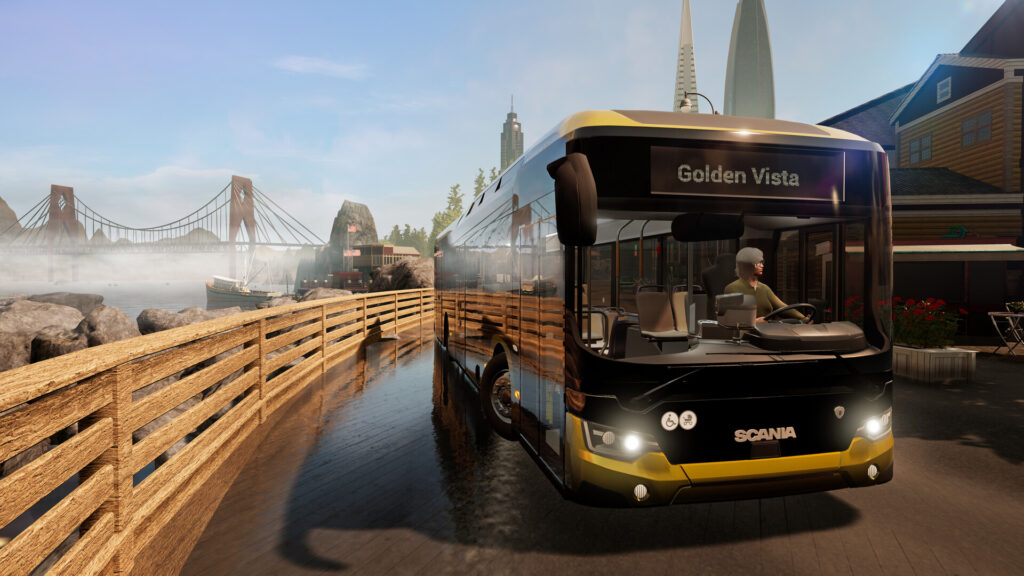
This guide is for Bus Simulator 21 players on PC who want to add community mods without guessing their way through menus. By the end you will know how to link your mod.io account, subscribe to mods, install them through the Mod Manager, and enable them before you load your company.
Bus Simulator 21 does not use the Steam Workshop. Mods go through mod.io instead, and the developer’s own notes say modding is only available on PC. If you play on console, none of this will apply to you.
What mods actually are here
Mods built with the official Bus Simulator 21 Modding Kit, available on the Epic Games Store, cover buses, maps, decals, exterior skins and interior designs. These are shared through mod.io and installed with the in-game Mod Manager. Remember that weapon-style attachments and upgrades do not apply to this game, but the general point stands: in-game items you buy or unlock are not mods. A mod is something a community author made and distributed separately.
Setting up the Mod Manager
The Mod Manager sits on the main menu. The first time you open it, you will land on the Mod.io tab, and the game will prompt you to link your mod.io account. Follow those prompts rather than trying to find a shortcut, since the exact wording can change between updates.
- Open the Mod Manager from the main menu.
- On the Mod.io tab, link your mod.io account when prompted.
- Browse mods and use the in-game subscribe button on the ones you want. This is the route the developer describes, so stick to it rather than downloading files from elsewhere.
- Switch to the Installed Mods tab and refresh the list so the game picks up what you have subscribed to.
Once your first mod has finished installing, a new option called “Change mods and Continue” appears on the main menu. That is where you actually enable the mods you want before you load your company. Subscribing alone is not enough, you still need to switch mods on from this screen.
Finding your mods in-game
Enabling a mod does not drop it straight into your depot. Mod buses are unlocked at the bus dealer, the same place you would buy any other vehicle. Skins and decals turn up in the paint shops, not in a separate mod menu. If a mod seems to have vanished after enabling it, check these two spots before assuming something failed.
Stick to one account
Use a single mod.io account and stay linked to it. At least one player created a new mod.io account while their old one was still linked to the game, and the mod they wanted simply would not load. Switching accounts partway through seems to confuse the link between the game and your subscriptions, so avoid it. If you already have an account working, keep using that one rather than starting fresh.
Co-op and reliability
The developer’s own steps do not cover how mods behave in co-op sessions, so there is no official guidance to lean on there. At least one player has also reported the whole process simply not working for them on a solo setup. Treat the menu labels mentioned here as a guide rather than a guarantee, since wording and behaviour can shift. Before you rely on a modded company for a session with friends, load it up together first and check that everyone sees the same buses, skins and maps.
If something goes wrong
Back up your save before you start adding mods, so you have something to fall back on if a company becomes unstable. If a mod does not appear after enabling it, go back to the Installed Mods tab and refresh again, then check the bus dealer or paint shop rather than the main menu. If nothing loads at all, confirm you are linked to the one mod.io account you have been using throughout, not a newer one created later. To remove a mod, unsubscribe from it on mod.io or disable it from the “Change mods and Continue” screen, then refresh the Installed Mods tab so the game drops it cleanly.
Keep a short note of which mods you have enabled for a given company, especially if you play with others. It saves a lot of confusion later when a bus or skin looks different on someone else’s screen and nobody can remember what was switched on.