Bannerlord mods: using the launcher, the Workshop and Nexus Mods
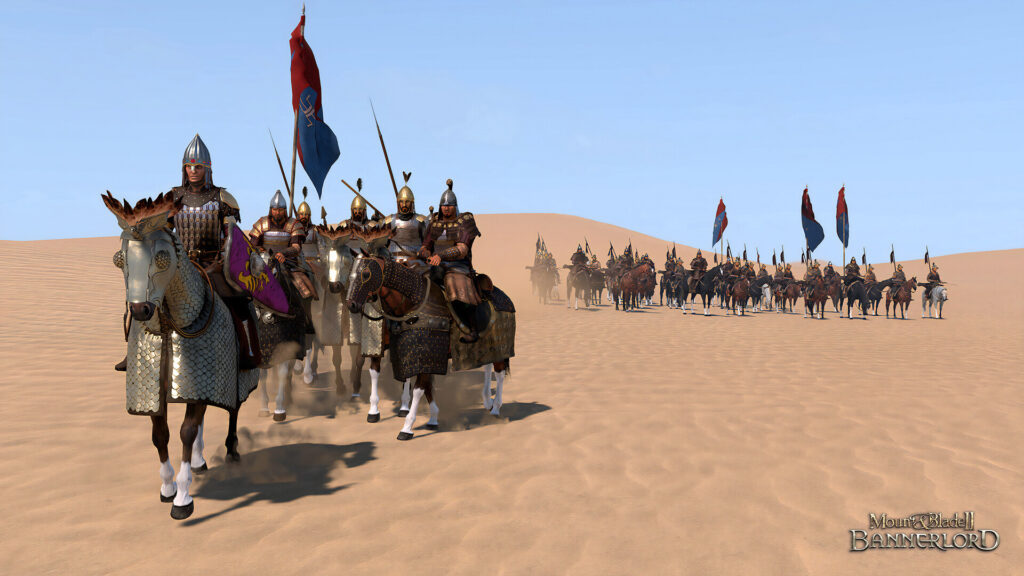
This guide is for anyone new to modding Mount & Blade II: Bannerlord who wants to add community mods without breaking a save or fighting the launcher. You will learn where mods come from, how to turn them on, and how to keep your game stable while you build up a mod list.
Before anything else, back up your save files. Modding is generally safe, but a bad combination of mods can corrupt a save or stop campaigns loading. Copy your save folder somewhere separate so you can always go back to a clean state.
Where Bannerlord mods come from
There are two main sources for Bannerlord mods: the Steam Workshop and Nexus Mods. Both host mods made by the community, and both are free to use.
The Steam Workshop is built into Steam. If you subscribe to a mod there, Steam downloads it automatically and keeps it in a Workshop folder tied to the game. This is the simpler route if you already use Steam for Bannerlord.
Nexus Mods is a separate website dedicated to mods for many games, including Bannerlord. Mods there are downloaded manually as files, then placed into the game’s mod folder yourself, or managed through a mod manager if you use one. Nexus often has a wider range of mods than the Workshop, including ones the author has chosen not to put on Steam.
Always get mods from the author’s own page, whether that is their Workshop listing or their Nexus Mods page. Avoid copies posted elsewhere, since you cannot be sure they match the original files.
Reading the mod page properly
Every mod page, on either platform, should list what it needs to run. This usually includes:
- Any other mods it depends on, often called required mods or dependencies.
- Any load order notes, meaning which mods need to be switched on before or after this one.
- Known conflicts with other mods or features.
Read this section before installing anything. A mod that needs a separate framework or library mod will not work, or may crash the game, if that required mod is missing or switched off. If a mod page does not explain something clearly, treat that as a sign to be cautious rather than guessing.
Switching mods on in the launcher
Mods for Bannerlord are not automatically active just because they are installed or subscribed to. You need to turn them on through the game’s launcher.
- Open the Bannerlord launcher, either through Steam or directly, rather than launching straight into the game.
- Find the section of the launcher that lists your installed or subscribed mods.
- Tick or enable the mods you want to use for this session.
- Check that any required mods listed on the mod’s page are also ticked, and placed in the order the mod page describes if load order matters.
- Save your selection and launch the game from the launcher so the chosen mods actually load.
If a mod does not appear in the launcher list at all, it has not installed correctly. Check that it downloaded fully and sits in the right mod folder for your install.
Start small and test
It is tempting to switch on a long list of mods at once, but this makes problems hard to trace. Start with a small number of mods, ideally ones that are simple on their own, and load into the game to confirm they work together.
Once you are confident that small group is stable, add one or two more mods at a time. Test again before adding further mods. This way, if something breaks, you know it is linked to whatever you just added, rather than guessing through a long list.
Keep an eye on whether any mod warns against use in online or competitive modes. Some mods change game files in ways that can lead to bans if used where other players expect an unmodified game. Stick to single-player or modes the mod author explicitly says are safe.
If something goes wrong
If the game crashes on launch or during loading, start by switching off your most recently added mod and try again. If that fixes things, the problem likely sits with that mod, a missing requirement, or a load order issue.
If the game loads but behaves oddly, such as missing menus or broken features, check the mod page again for known issues or required mods you may have missed. Disabling mods one at a time, then reloading, is the most reliable way to isolate the cause.
If your save will not load at all, switch off all mods and try loading it on a clean, unmodified game. If it loads then, you know the issue is mod-related rather than save corruption, and you can slowly reintroduce mods to find the culprit.
Undoing changes
To remove a mod, untick it in the launcher first, rather than deleting files straight away. This lets you confirm the game still runs properly without it. Once you are sure you do not need it, you can unsubscribe from it on the Workshop or delete its files if it came from Nexus Mods.
If removing a mod breaks a save that depended on it, your backup save becomes the way back to a working campaign.
Keep a simple note of which mods you have active and where each one came from. When you do run into an issue, that short list turns a guessing game into a quick process of elimination.
 The BeamNG.drive Mod Manager explained: active, inactive, unpacked, and the habits that keep a long list working
 Modding Fallout: New Vegas: the 4GB patcher, xNVSE and a mod manager
 Installed a truck mod but it is not in the dealer? The five reasons, and how truck mods appear in ETS2 and ATS
 Modding Skyrim Special Edition for the first time: accounts, managers and a careful first batch