XCOM 2 Mods: How to Use the Alternative Mod Launcher
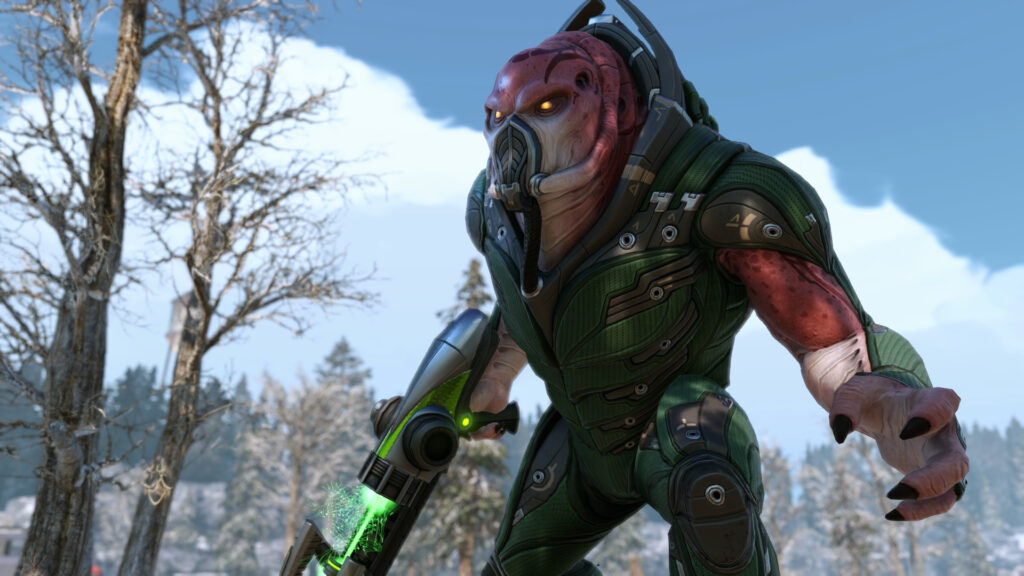
This guide is for XCOM 2 players who want to add community mods without breaking a save or fighting load-order problems. By the end you will know where mods come from, how the Alternative Mod Launcher helps you manage them, and how to test new additions without risking your campaign.
XCOM 2 mods are distributed through the Steam Workshop. You subscribe to a mod on its workshop page and Steam downloads it to your game files. The game itself has a basic mod menu, but it does not tell you much about how mods interact with each other, which is where the Alternative Mod Launcher comes in.
What the Alternative Mod Launcher does
The Alternative Mod Launcher is a community tool built to replace the stock launcher’s limited mod list. It reads the mods you have subscribed to on the Steam Workshop and lets you enable or disable them individually, reorder them, and save different mod configurations as profiles.
Its main advantage is visibility. It can flag conflicts between mods that change the same game files or systems, and it warns you when a mod needs another mod to work but that requirement is not active. These checks save you from the usual symptom of a bad mod list: the game crashing on launch or breaking mid-mission with no obvious cause.
Getting set up
Before you touch any mods, back up your save folder. XCOM 2 saves are precious because campaigns run long, and a mod that changes game data partway through a save can corrupt progress or lock you out of missions. Copy the save folder somewhere safe before you install anything.
Once that is done, follow these steps to get mods running through the launcher:
- Open the Steam Workshop page for XCOM 2 and subscribe to the mods you want. Stick to mods from the author’s own workshop listing rather than reuploads, since reuploads can be outdated or missing files.
- Launch the Alternative Mod Launcher instead of the game’s default launcher. It should detect your subscribed mods automatically.
- Check the launcher’s conflict and requirement warnings before enabling anything. If it flags a missing requirement, subscribe to that mod too and let the launcher refresh its list.
- Enable a small number of mods to start, ideally ones that do not touch the same systems, such as one interface mod and one cosmetic mod.
- Save this as a profile if the launcher supports it, so you can return to a known working setup later.
- Launch the game through the tool and load a save, or start a new short mission, to confirm everything behaves as expected.
Start small and test
Resist the urge to subscribe to a long list of mods on day one. Mods that alter core systems, such as class overhauls or gameplay rebalances, are more likely to clash with each other than simple visual or quality of life mods. Add a handful, play a mission or two, and only then add more.
If a new mod causes odd behaviour, disable it through the launcher and reload. Keeping mod counts low while testing makes it much easier to work out which one caused the problem, since the launcher shows you exactly what is active at any time.
Online play and bans
Mods are meant for single-player campaigns. If XCOM 2 has any competitive or online mode, avoid running mods there, since altering game files can trigger a ban or desync against other players. Keep your modded setup for solo campaigns only.
If something goes wrong
If the game crashes on launch, open the Alternative Mod Launcher and disable mods one at a time, starting with the most recently added, until the game loads again. The conflict warnings in the launcher are a good first place to check, since they often point straight at the culprit.
If a save becomes unstable mid-campaign, disable any mods added after that save started and see if stability returns. This is why the backup you made earlier matters: if nothing fixes it, you can restore the backup and resume without that problematic mod.
Removing mods
To uninstall a mod, unsubscribe from it on the Steam Workshop page and disable it in the launcher. Some mods leave residual data in an active save if they were used heavily during that campaign, so starting a fresh campaign after a major mod removal is the safest way to avoid leftover issues.
Keep your mod list modest and your saves backed up, and treat the launcher’s warnings as useful signals rather than noise. A tidy, well tested mod setup will serve you far longer than a huge list added all at once.
 Total War: Warhammer III mods: using the launcher’s mod manager and the Workshop
 Steering wheels and controllers in BeamNG.drive after 0.40: what changed, what the hotfixes fixed, and how to set up
 Satisfactory Mod Manager: installing mods and keeping profiles
 Modding Skyrim Special Edition for the first time: accounts, managers and a careful first batch