Kenshi mods: using the Workshop, mod order and starting new games
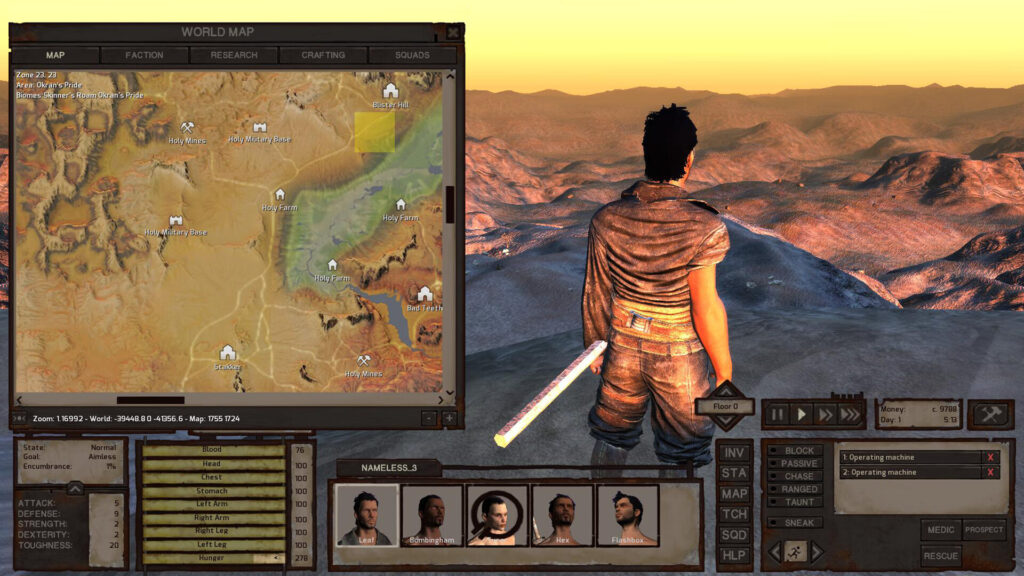
This guide is for anyone who has just discovered that Kenshi has a modding scene and wants to get mods running without breaking a save. By the end you will know where mods come from, how to arrange them in the launcher, and when a mod forces you to start fresh.
Where Kenshi mods come from
Kenshi mods are distributed through the Steam Workshop. You browse the Workshop page for Kenshi, find a mod you want, and subscribe to it through Steam. Steam downloads the files for you in the background, so there is no manual copying of folders involved for Workshop content.
Only get mods from their own Workshop page rather than from random file-sharing sites. The author’s page is where you will find the correct version, any notes on what the mod changes, and warnings if the mod is unfinished or experimental.
Switching mods on in the launcher
Subscribing on Steam does not automatically activate a mod in your game. Kenshi uses its own launcher, separate from Steam’s interface, and that launcher has a mod list where you tick the mods you want active for your next session.
Open the launcher before you start the game and look for the mod management screen. Any mod you have subscribed to on Steam should appear there as an option. Tick the ones you want switched on. If a mod you subscribed to does not show up, check that the subscription actually finished downloading before you blame the launcher.
Mod order and why it matters
When two mods try to change the same thing, such as the same item, building, or game file, the mod order decides which change actually applies. Whichever mod sits lower or higher in the load order (check your launcher’s own convention for which end wins) overwrites the other mod’s version of that same change.
This matters most when you run several mods that touch similar systems. If something looks wrong in game, such as a weapon behaving oddly or a building missing a feature you expected, mod order conflicts are the first thing to check.
A simple way to sort out conflicts:
- Note down which mods are active and in what order.
- Move the mod whose changes you want to keep so it loads after the one it conflicts with.
- Restart the game and check whether the issue is fixed.
- If it is not, try swapping the order the other way and test again.
There is no universal rule for which mod should go first across every combination, since it depends on what each mod actually edits. Treat it as trial and error guided by what you see in game.
When a mod needs a new game
Some mods only work properly if you start a new game with them already active. This is usually the case for mods that change how the world generates, add new starting conditions, or alter core systems that your existing save was built without.
Adding this kind of mod to an existing save can cause missing content, broken quests, or odd behaviour because your save was never set up with that mod’s changes in mind. If a mod’s own page says it needs a new game, treat that as a firm requirement rather than a suggestion.
Mods that only add small, self-contained content, like a new item or a minor tweak, are more likely to slot into an existing save without trouble. When in doubt, assume a new game is safer, especially for anything that touches world generation or starting factions.
Back up your saves first
Before you switch on any new mod, copy your save folder somewhere safe. This takes a minute and means that if a mod corrupts your save or causes a crash on load, you can simply put the backup back and carry on as if nothing happened.
Keep a backup from before each batch of mod changes you make, not just one single backup from the start. That way you can roll back to the exact point before the change that caused a problem, rather than losing everything since you started modding.
If something goes wrong
If the game crashes on startup after adding mods, go back into the launcher and switch mods off one at a time, testing after each change, until the game loads again. That tells you which mod is causing the problem.
If a save will not load or looks badly broken, restore your backup rather than trying to force your way through. Trying to fix a corrupted save by adding or removing more mods usually makes things worse, not better.
To uninstall a mod cleanly, untick it in the launcher and unsubscribe from it on Steam. If the mod required a new game, expect that removing it from an existing save may also cause problems, since the save was built around its presence.
Keep your mod list small to start with. A handful of mods you understand and can switch off individually is easier to manage than a long list where you cannot tell which one caused the issue you are looking at.