How to install BeamNG.drive map mods, and what to do when a map will not load
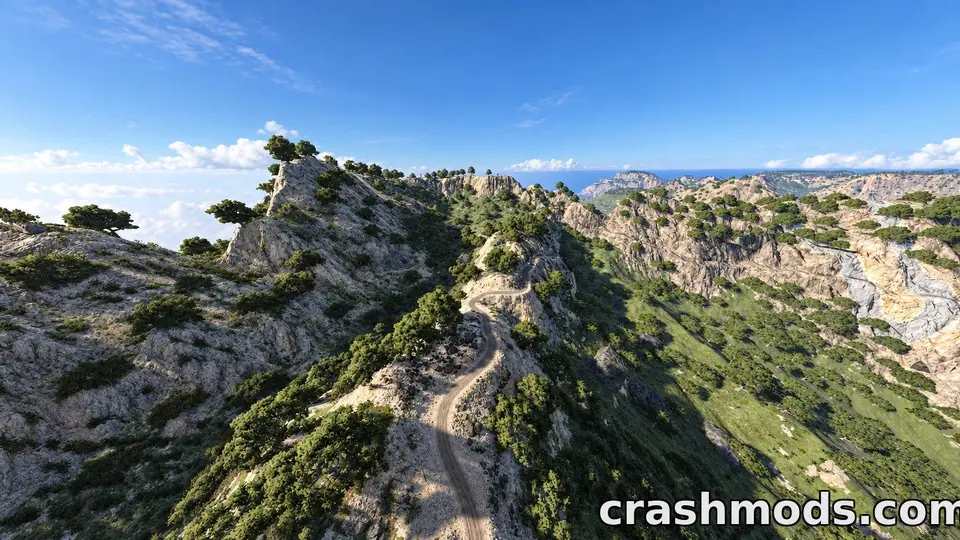
Maps are the biggest downloads on ModsDrop by a distance: the ten largest files in the library are all BeamNG.drive maps or graphics packs, several above two gigabytes. They are also the mods that most often “do not work”, usually for reasons that have nothing to do with the map. This guide covers installing a map, finding it in the game, and the handful of things to check when it fails.
Installing
A map is a zip like any other mod. It goes into the mods folder of the current game version (the launcher’s Manage User Folder button opens it) and stays zipped. Inside, a map has a levels/ folder with one subfolder named after the level, containing an info.json, terrain files and a main/ folder of objects. If the zip you downloaded opens to a folder with the mod’s name that in turn contains levels/, the author packed it one level too deep; some of those still load, many do not, and the fix is to re-zip from the levels folder down.
Finding it in the game
Maps appear in the level selector (Freeroam, then the map list) next to the official ones, with the preview image and name from info.json. The list is built when the game starts; a map added while the game is running appears after a restart. If the Mod Manager shows the mod as active and the level selector does not show the map, the info.json is missing or broken, and only the author can fix that.
Loading time and the first load
A two-gigabyte map loads slowly the first time, because the game converts textures and builds caches for it. Give it minutes, not seconds, and do not force-close the game during that first load; a cache left half-built is the most common cause of a map that “loaded once and never again”. The second load is much faster. Clearing the cache from the launcher forces the whole process to run again, which is also the fix when a map misbehaves after an update of either the map or the game.
When the map floats, flickers or crashes
- Vehicles drive in mid-air or fall through the ground. BeamNG 0.40 changed how the invisible ground plane of some mod maps was read; hotfix 0.40.1 fixed it on 20 October. Make sure you are on 0.40.1 or later before blaming the map.
- Missing textures, orange or checkerboard surfaces. Either the download is incomplete (compare the size with the file page), or the map depends on another mod’s assets. Authors usually say so in the description; look for “requires”.
- Crash on load. Clear the cache first. If it still crashes with every other mod deactivated, the map does not work on this game version. Maps break more often than cars when the game updates, because they reference the game’s own materials and objects, and the 0.40 asset cleanup removed duplicate materials and fixed broken texture links on the official maps.
- Very low frame rate. Dense foliage without level-of-detail models, or 4K ground textures on an 8 GB card. Lower texture quality a step before anything else; the performance guide has the rest.
- Traffic does not spawn or AI drives into walls. The map has no navigation graph for its roads, or an old one. That is an authoring choice; nothing on your side fixes it.
Several maps at once
Installed maps do not interfere with each other as long as their level folder names differ. Two maps that share a folder name (two versions of the same map, or two authors picking the same generic name) overwrite each other’s files and produce a broken mixture. Check the folder name under levels/ before installing a second version; delete the old zip rather than keeping both.
Maps and Career mode
Career mode runs on its own set of official maps. A custom map can be driven in Freeroam, Time Trials and most scenarios, but it will not appear as a Career location. That is by design, not a fault in the mod.
Keep the zip
Large maps disappear from the internet more often than cars: authors move on, hosts delete big files. If a map works for you, keep the zip somewhere outside the mods folder. On ModsDrop the download link on a file page is valid for about six hours, but the page itself stays, so bookmark the page, not the link.
 BeamNG.drive mods not showing up? Eight fixes, in the order to try them
 How to set up a BeamNG.drive car for drifting: differential, steering angle, tyres, alignment and gearing
 ModsDrop in October 2026 in numbers: 14,536 downloads, 141 countries, 2,950 new files
 New and rising: the BeamNG.drive cars published in the last two weeks that people are downloading most