Hearts of Iron IV mods: playsets, total conversions and small tweaks
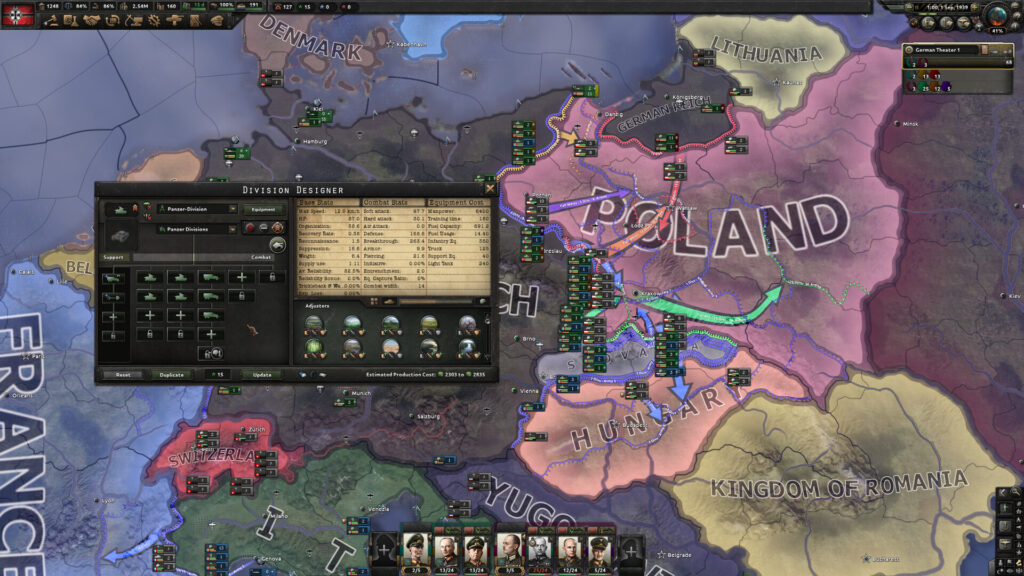
This guide is for Hearts of Iron IV players who want to add mods without breaking a save or losing track of what they have installed. By the end you will know how playsets work, how total conversions differ from small tweaks, and how to test a mod list before committing to a long campaign.
What playsets are for
The Paradox launcher groups your mods into playsets. A playset is simply a saved list of mods switched on together, in a chosen order. You can keep several playsets side by side, one for a historical game, another for a heavily modded total conversion, and a third that is just the base game with no mods at all.
Playsets matter because load order affects which mod wins when two mods try to change the same file. Keeping separate playsets for separate styles of play means you are not constantly turning mods on and off by hand, and you can switch between setups in a few clicks rather than rebuilding your list each time.
Total conversions versus small tweaks
Total conversion mods rework large parts of the game. They can replace the map, the countries, the focus trees, the technology list and the art, turning Hearts of Iron IV into something closer to a different era or setting entirely. These are substantial downloads and they often need to sit alone or near the top of a playset, since they touch so many files that other mods are likely to clash with them.
Small mods do the opposite. They change one thing, such as a single game rule, a visual detail, or one part of the interface. Small mods are easier to combine, because the chance of two of them editing the exact same file is lower. A playset built mostly from small, focused mods is usually more stable than one stuffed with several big total conversions at once.
Knowing which type of mod you are adding helps you decide where to place it and what to expect if something misbehaves later.
Read the compatibility notes
Every mod page should carry notes from the author about what the mod needs, what it conflicts with and whether it works alongside other mods. These notes exist because the author has already seen the common problems, so read them before you add anything to a playset.
Pay particular attention to notes about total conversions. Because they alter so much of the game, authors usually warn against running more than one total conversion in the same playset, and against mixing a total conversion with mods that assume the base game’s map or countries.
If a mod page says it needs another mod to work, or that it must load before or after a specific mod, follow that instruction when you build your load order.
Building and testing a playset
Treat a new playset as something to test, not something to trust on sight. A short checklist keeps this simple:
- Back up your existing saves before adding any new mods, in case a mod changes how an existing save loads.
- Get each mod from the author’s own page rather than a copy posted elsewhere, so you know you have the version the author intended and the compatibility notes that go with it.
- Build the playset one mod at a time if you are mixing several small tweaks with a total conversion, checking the game still starts after each addition.
- Start a short test game once the playset looks complete. Play forward a handful of in-game days rather than jumping straight into a long campaign.
- Only commit to a full-length game once the test run has gone through normally, with no crashes or obviously broken mechanics.
This approach costs a little time up front but saves time later, since problems in a modded playset tend to surface early rather than halfway through a long war.
Multiplayer and total conversions
If you plan to play with others, check whether the host’s playset matches yours exactly, especially for total conversions. A mismatched mod list between players in multiplayer can cause desyncs or crashes, since everyone needs the same files loaded in the same order.
If something goes wrong
If a playset fails to load, or the game crashes on start, remove mods one at a time, starting with the most recently added, and relaunch after each removal. This isolates the mod causing trouble far faster than guessing.
If a save stops loading after adding mods, go back to the backup you made before you started. Switching to a clean, unmodded playset is also a quick way to confirm whether an issue is caused by a mod or by something else entirely.
To remove a mod completely, disable it in the playset and delete its files from the mod folder if you no longer need it anywhere. This fully undoes the change and stops the launcher loading it by accident later.
Keep one playset permanently free of mods. It costs nothing to maintain and gives you a reliable fallback whenever you need to check if the base game, rather than a mod, is behind a problem.
 Hearts of Iron IV Patch 1.19.4 Adds Quality of Life Tools and Big Balance Pass
 How to install Farming Simulator 25 mods on PC: the mods folder, the zip-name rule and what patches 1.24 and 1.25 changed
 Cities: Skylines mods and assets: the difference and how to enable them
 Modding The Witcher 3: the mods folder, the DLC folder and Vortex