Cities: Skylines mods and assets: the difference and how to enable them
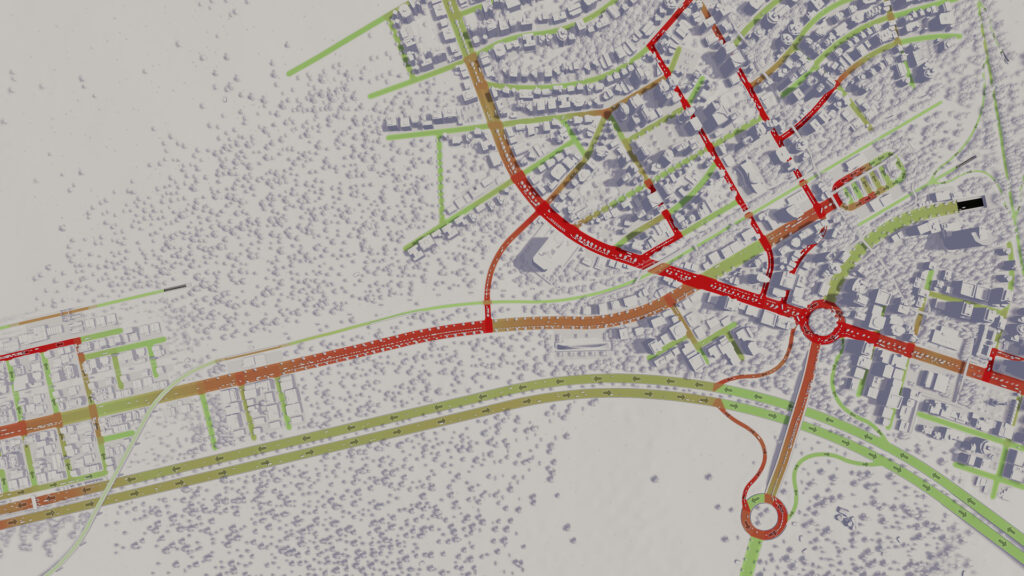
This guide is for anyone new to Cities: Skylines who keeps seeing the words “mod” and “asset” used as if they mean the same thing. They do not. By the end of this guide you will know which is which, where both come from, and how to turn mods on without breaking your city.
Assets vs mods: what each one actually does
Assets are content. They add new buildings, props, trees, vehicles and similar items to your game. Drop an asset into your city and it behaves like any other building or object already in the game, it just gives you more choice of what to place.
Mods are different. A mod changes how the game itself works: the rules, the tools, the interface, the way systems behave. A mod might add a new menu, alter traffic behaviour, or give you extra control over policies and growth. Nothing about a mod is placed in your city the way an asset is.
The simple way to remember it: assets are things you build with, mods are changes to the game you build in.
Where both come from
Both assets and mods for Cities: Skylines are published through the Steam Workshop. You subscribe to either type the same way, through the Workshop page for the item, and Steam downloads the files for you. The difference shows up once you are in the game.
Assets show up automatically once subscribed. You will find them sorted alongside the game’s own buildings and props, ready to place from the usual building menus.
Mods do not switch themselves on just because you subscribed. They sit in a separate list waiting for you to enable them.
How to enable mods
Mods are turned on and off in the Content Manager, a section inside the game separate from the normal building menus. Assets do not need this step, but mods do, because a mod changing core game behaviour should never run without your say-so.
- Subscribe to the mod on the Steam Workshop page, using the author’s own listing rather than a reposted copy.
- Launch Cities: Skylines and open the Content Manager from the main menu.
- Find the mods section inside Content Manager, separate from the assets section.
- Locate the mod in the list and switch it on.
- Restart the game if the mod needs it, some do.
Assets need no toggle. Once subscribed, they simply appear where you would expect to find that type of building or prop.
Start small and build up
Do not subscribe to twenty mods and fifty assets on day one. Start with a handful of mods that solve a problem you actually have, and a small set of assets you know you want to use. Play with that for a while before adding more.
This matters because if something goes wrong later, a short list is far easier to troubleshoot than a long one. Mods in particular can interact with each other in ways that are hard to predict, so fewer moving parts means fewer surprises.
Keep a list of what each mod does
Write down, even in a simple text file, what each mod you have enabled is for. A line or two per mod is enough: what it changes, why you added it. Do the same for assets if you have a lot of them, though this matters less since assets do not change game behaviour.
This list becomes useful the moment something behaves oddly in your city. You can look at the list, think about which mod touches the area that is misbehaving, and test by disabling that one mod rather than guessing blindly.
Back up your save first
Before enabling any new mod, back up your save file. Mods that change game systems can affect an existing city in ways that are hard to reverse. A backup means you can always go back to how things were if a mod does not behave the way you expected.
If something goes wrong
If your city stops loading properly, or something looks broken after adding mods or assets, go back to Content Manager and disable the most recently added mod first. Load your city again and see if the problem clears.
If it does not, work backwards through your list, disabling one mod at a time rather than switching everything off at once. This way you find the actual cause instead of just hiding the symptom.
To uninstall a mod completely, disable it in Content Manager and then unsubscribe from it on the Steam Workshop page. Assets can simply be unsubscribed from, since they were never toggled on in the first place.
A city with a handful of well understood mods will always be easier to manage than one with dozens you cannot account for. Keep that list updated every time you add something new, and treat it as a map of your own game rather than a chore.
 Profiles, saves and the ‘mod missing’ dialog: keeping an ETS2 or ATS career safe from betas, removed mods and updates
 CKAN for Kerbal Space Program: installing mods with their requirements
 Risk of Rain 2 Mods with r2modman: Setup and Profiles
 Steam Workshop mods in ETS2 and ATS: subscribing, where the files are, updates, removals, and clashes with manual copies