ModHub or manual download? How the two ways of getting Farming Simulator 25 mods differ, and how to mix them
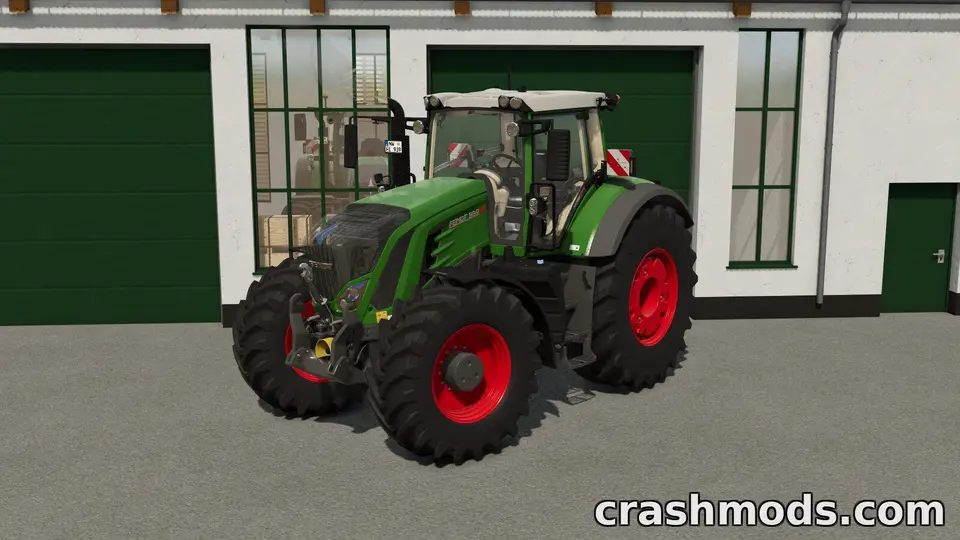
Farming Simulator 25 gives you two ways to get mods: the official ModHub, reachable from the game’s main menu and from GIANTS’ website, and manual downloads from sites like this one. Both put a zip in the same folder. They differ in who tested the mod, how it updates, and what works on consoles. Knowing which is which saves you from blaming a mod for a problem that belongs to the other route.
ModHub
ModHub is GIANTS’ curated catalogue. A modder submits a mod; GIANTS tests it against their guidelines (it must load without errors, follow naming and structure rules, not break multiplayer, and pass a content check), and only then does it appear. Because of that testing, ModHub is the only source of mods for PlayStation and Xbox players, and ModHub mods carry a mark in the in-game mod list. When a ModHub mod is updated, the game shows an update available and installs it with a click.
The cost is time and scope. Testing takes weeks, so ModHub mods lag behind their authors’ latest versions, and many mods never go there: anything that modifies the base game in ways the guidelines forbid, anything with a licence problem, anything whose author did not bother. Scripts that reach deep into the game, big maps with borrowed assets, conversions of other games’ vehicles: these live outside ModHub.
Manual downloads
A zip from a website goes into Documents\My Games\FarmingSimulator2025\mods and appears in the mod selection screen like any other. Nobody has tested it except its author and its downloaders, it does not update itself, and it works only on PC. In exchange you get the newest versions, the mods that will never be on ModHub, and the long tail of small fixes and personal projects that make up most of the modding scene.
Side by side
- Testing: ModHub tested by GIANTS; manual tested by nobody you know.
- Updates: ModHub in-game with one click; manual by downloading again and replacing the zip (same file name, or remove the old one).
- Platforms: ModHub on PC and consoles; manual on PC only.
- Multiplayer: both work; the host’s mods are sent to joining players either way.
- Speed: manual gets new mods and fixes first, sometimes by months.
- Safety: ModHub screens content; for manual downloads the author’s reputation and a virus scan are what you have. Every file on ModsDrop is scanned on VirusTotal before it is published, and the result is on the file page.
Mixing the two
Most PC players run both, and that is fine. Two things to watch: the same mod from both sources (a ModHub version and a newer manual version) conflicts, because they share a name; keep one. And a manual mod that depends on a ModHub mod needs that exact ModHub version, which the game may update under you; when a dependency update breaks something, the manual mod’s author needs a few days to catch up.
Updating a manual mod
- Download the new zip. Compare its size with the download page.
- Close the game. Delete the old zip from the mods folder, or let the new one overwrite it if the file name is identical.
- Start the game, open the mod selection screen for your savegame, confirm the mod is still ticked and shows no warning.
- If the author says “new savegame required” (common for map updates that move fields or sell points), believe them.
Which to prefer
For a vehicle or tool that exists on ModHub, take the ModHub version: tested, auto-updating, multiplayer-safe. For a mod that is only available manually, or whose manual version is far ahead, take the manual one and bookmark the author’s page so you hear about updates. For a console, there is no choice, and that is why every FS25 file on ModsDrop says PC.
 Map mods in Farming Simulator 25: why they need a new savegame, how updates can end a career, and why the zip must never be lost
 The Farming Simulator 25 modding pipeline: GIANTS Editor, the Blender exporter, modDesc.xml, specializations and TestRunner
 Farming Simulator 25 mods people keep downloading on ModsDrop
 Reading log.txt in Farming Simulator 25: finding why a mod was rejected or crashed, and what to send the author