CKAN for Kerbal Space Program: installing mods with their requirements
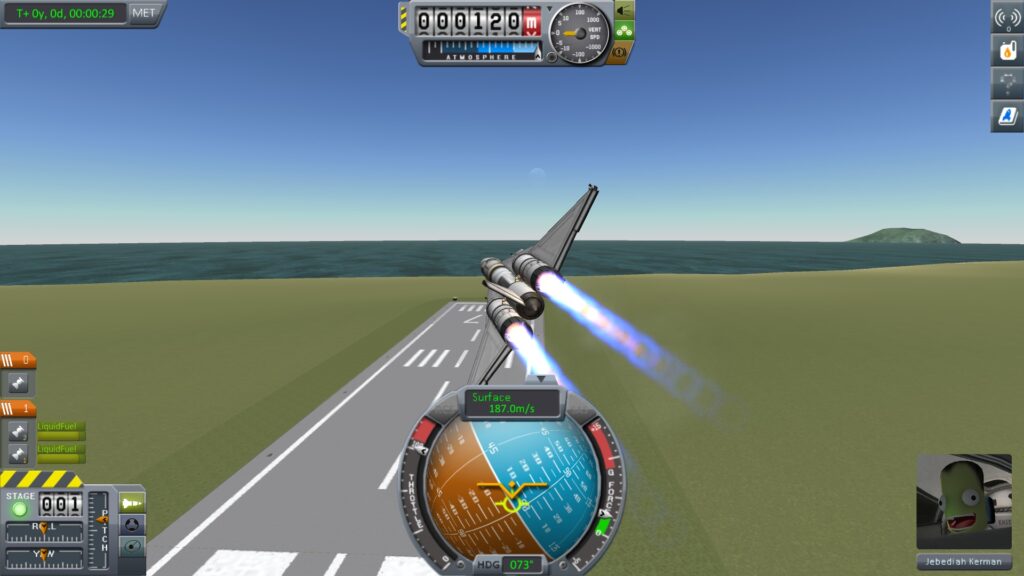
This guide is for Kerbal Space Program players who want to add mods without breaking their save or fighting version mismatches by hand. By the end, you will know how CKAN installs mods along with the other files they depend on, how it checks those mods against your game version, and how to take mods out cleanly when you are done with them.
Kerbal Space Program mods often depend on other mods to work. A parts pack might need a specific plugin framework, and that framework might need its own support files. Installing all of that by hand means downloading each piece separately and hoping you got the right version of everything. CKAN exists to handle that chain for you.
What CKAN actually does
CKAN is a mod manager built for Kerbal Space Program. Instead of just copying files into your game folder, it reads a mod’s listed requirements and pulls those in alongside the mod you actually asked for. If a mod needs three other pieces to function, CKAN fetches all three without you needing to track down each one yourself.
It also checks mod versions against the version of Kerbal Space Program you have installed. This matters because a mod built for an older or newer release of the game can cause crashes, missing parts, or save corruption. CKAN flags mods that are not marked compatible with your installed game version, which saves you from guessing whether something will work before you commit to installing it.
Before you start: back up your saves
Mods change how the game loads and behaves, and large changes can occasionally cause a save to misbehave, especially if a mod adds new parts that your existing craft and vessels then rely on. Before installing anything new, copy your save folder somewhere safe outside the game directory. This takes a minute and means you can always get back to a working state if a mod install goes wrong or you simply decide you do not like the result.
Installing mods with their requirements
The general process with CKAN follows the same shape regardless of which mod you are adding:
- Point CKAN at your Kerbal Space Program installation folder so it knows which copy of the game to manage.
- Let it refresh its list of available mods, which it checks against your installed game version.
- Search for the mod you want and select it for installation.
- Review the list of additional mods CKAN proposes to install alongside it. These are the requirements the mod depends on to run.
- Confirm the installation and let CKAN download and place the files for you.
- Launch the game and confirm the mod loads without errors before making further changes.
Doing one mod at a time, or one small group at a time, makes it far easier to work out what caused a problem if something does not load correctly. Installing a dozen mods in one go and then finding an issue gives you very little to go on.
Why version checking matters
Kerbal Space Program mods are written against specific versions of the game. A mod that worked perfectly on an older release can fail outright, or behave unpredictably, on a newer one, and the same applies in reverse. CKAN’s version check is there to stop you installing something that is flagged as incompatible with what you currently have running. If a mod shows as not compatible, treat that as a real warning rather than a formality, even if the mod worked fine for you previously on a different game version.
Removing mods cleanly
One of the more useful things CKAN does is let you remove mods cleanly. Manually deleting mod files can leave stray leftovers behind, particularly from mods with several dependent files, and those leftovers can cause odd behaviour later. CKAN tracks what it installed, so removing a mod through CKAN takes out the files it placed, rather than leaving a partial install sitting in your game folder.
If you decide a mod is not for you, or a mod turns out to be the cause of a problem, removing it through CKAN rather than by hand is the safer route. It also makes it easier to reinstall later if you change your mind, since CKAN still has the record of what the mod needs.
If something goes wrong
If the game fails to load, or you see errors on startup after installing mods, start by checking whether all installed mods show as compatible with your current game version in CKAN. An incompatible mod is the most common cause of this kind of problem.
If that does not fix it, remove the most recently installed mod through CKAN and try again. Working backwards one mod at a time is slower than guessing, but it tells you exactly which mod is responsible rather than leaving you unsure. If none of that resolves the issue, fall back to your backed-up save and a clean or minimally modded install, then reintroduce mods gradually.
Keep heavily modded installs for single-player use rather than any online or shared play unless a mod’s own page says otherwise, since mismatched mods between players can cause problems that have nothing to do with CKAN itself.
Once you have a stable modded setup you are happy with, note down which mods you installed and in what order. That short list is worth more than it seems the first time you need to rebuild after a problem.
 7 Days to Die modlets: using the Mods folder, XML mods and code mods
 Trailer and cargo mods explained: company trailers, owned trailers, cargo packs, and where each shows up in ETS2 and ATS
 Safe Mode and Clear Cache in BeamNG.drive: what each does, what neither does, and the order to use them
 XCOM 2 Mods: How to Use the Alternative Mod Launcher