tModLoader basics: how to start modding Terraria safely
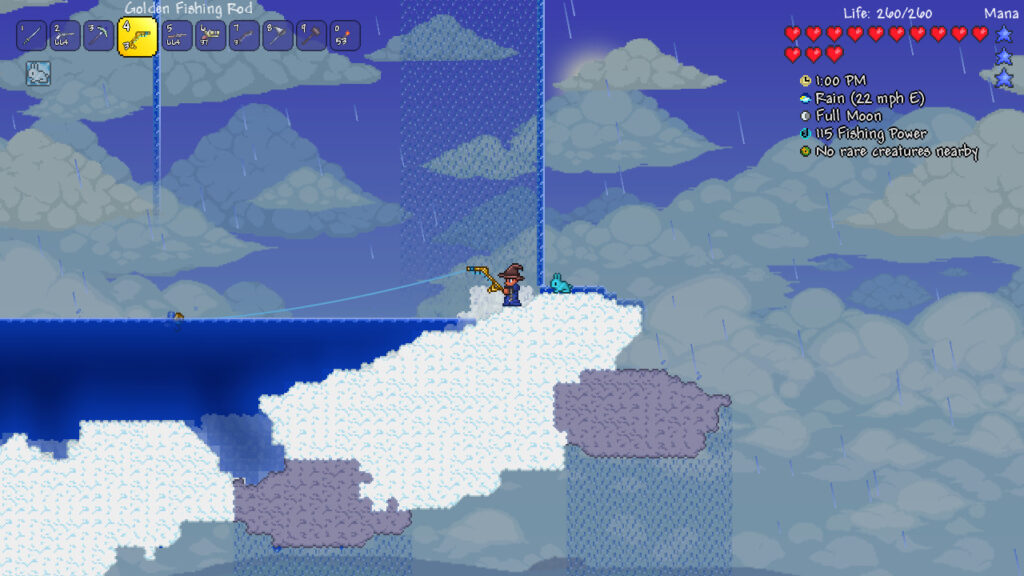
This guide is for Terraria players who want to try mods but are not sure where to start. By the end you will understand what tModLoader actually is, how it keeps your normal game safe, and how to turn on your first few mods without breaking anything.
What tModLoader actually is
tModLoader is a separate, free app on Steam. You need to already own Terraria, but tModLoader installs and runs as its own program rather than as an update to the base game. Think of it as a modded version of Terraria that sits next to the original, not inside it.
Because it is a different app, it keeps its own players and worlds. Your normal Terraria saves are not touched by anything you do in tModLoader. You can install dozens of mods, delete characters, or make a mess of a modded world, and your original unmodded game stays exactly as it was.
Getting mods into the game
Once tModLoader is installed and running, mods are added through the in-game Mod Browser. This is a built-in list you can search and browse without leaving the app. Downloading a mod from the browser does not switch it on automatically. After downloading, you need to go to the mod list and enable it yourself.
This two-step process, download then enable, is useful because it lets you collect a few mods and only turn on the ones you actually want to use for a particular world or session.
Setting up your first few mods
Start small. Trying to run a huge pile of mods at once makes it much harder to work out what is causing a problem if something goes wrong.
- Open tModLoader and go to the Mod Browser.
- Download two or three mods that sound interesting, one at a time.
- Open the mod list and tick the mods you just downloaded to enable them.
- Reload when prompted, so the game can load the new content.
- Start or load a modded world and test that everything works as expected.
If everything runs fine, you can go back to the Mod Browser and add more over time. If something feels off, you know exactly which small batch of mods to check first.
Keeping things separate and safe
Because tModLoader has its own players and worlds, there is no real risk to your vanilla saves from experimenting. Still, it is good practice to back up any world or character you care about before loading it into a modded session, just in case a mod changes something you did not expect.
Only get mods through the official Mod Browser inside tModLoader, since that pulls from the authors’ own listings rather than random downloads elsewhere. If you ever play Terraria in any online mode where mods are not allowed, keep your modded setup for singleplayer or private games with friends who are using the same mods, rather than mixing it into modes that ban third-party content.
If something goes wrong
If tModLoader will not start, or a world fails to load after adding mods, go back to the mod list and disable the mods you enabled most recently. Reload and check if the problem goes away. This narrows down which mod is causing the issue without having to remove everything at once.
If a specific mod keeps causing crashes or odd behaviour, disable it in the mod list rather than trying to fix it manually. Disabling is the safe undo option here: it switches the mod off without deleting your world or character, so you can try again later or report the issue to the mod’s own page.
If you want to remove a mod completely, do so from inside tModLoader rather than digging through folders by hand. Uninstalling through the app keeps your other mods and worlds intact.
A practical tip
Keep one modded world just for testing new mods before you add them to the world you actually care about. It takes a few minutes to set up and saves you from finding out the hard way that a new mod does not play well with your main save.
 Lethal Company mods: using Thunderstore, r2modman and shared modpack codes
 Total War: Warhammer III mods: using the launcher’s mod manager and the Workshop
 How to install Farming Simulator 25 mods on PC: the mods folder, the zip-name rule and what patches 1.24 and 1.25 changed
 How to install mods in BeamNG.drive