Black Myth: Wukong pak mods and RE-UE4SS: the ~mods folder explained
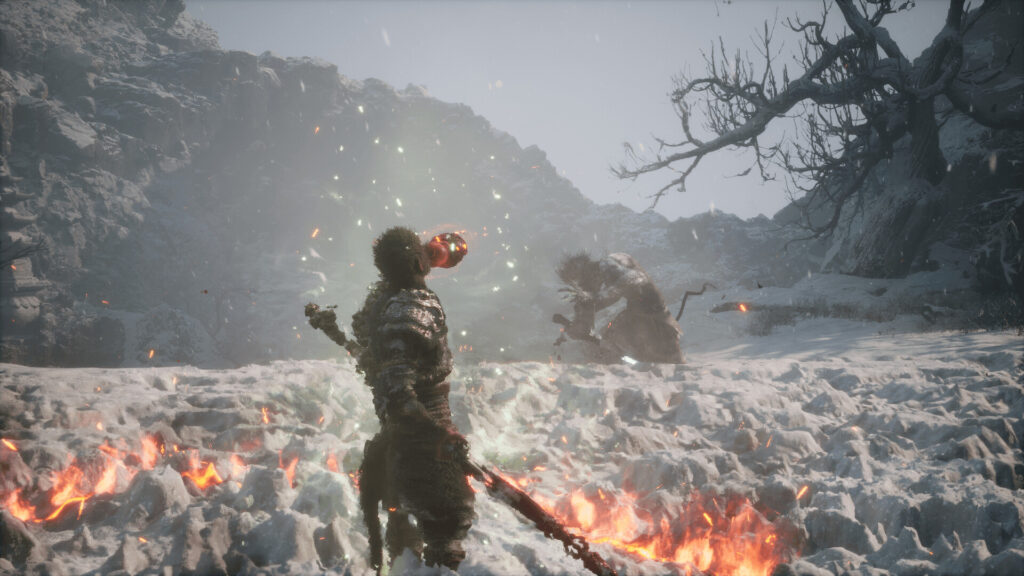
This guide is for anyone who wants to add community mods to Black Myth: Wukong without breaking the install. It covers where pak mods go, when you need the RE-UE4SS loader, and how to undo changes if something looks wrong. Read it alongside the mod’s own page, since that page always has the final word on install steps.
Mods for this game are unofficial work made by players, mostly hosted on Nexus Mods. There is no single install method across every mod, so treat the instructions on each mod’s download page as the master guide and use this article to understand the folders they refer to.
Finding the right folder
Everything starts with the game’s install folder. On Steam, right-click the game, choose Manage, then Browse local files. This opens the folder that contains the b1 folder, which is the one you will keep coming back to. If you installed through the Epic Games Store, the game sits under a different base folder, but the same b1 structure applies once you are inside it.
Keep this folder open in a window while you work. Most mod pages describe paths starting from b1, so it helps to know exactly where that sits on your drive before you start copying files.
Installing a plain pak mod
A standard pak mod is a single file with a .pak extension. These go into a folder called ~mods inside b1ContentPaks. That folder does not always exist by default, so you may need to create it yourself.
- Open b1ContentPaks in your file browser.
- If there is no folder called ~mods, create one and name it exactly that, including the tilde.
- Extract the mod’s download if it came as an archive, then take the .pak file and drop it straight into ~mods.
- Launch the game and check that the mod works as described on its page.
Do not rename the file or nest it inside another subfolder unless the mod page tells you to. Pak mods are read directly from ~mods, so extra folders inside it can stop them loading.
When you need RE-UE4SS
Some mods will not work from a plain .pak file. They need RE-UE4SS, an open-source mod loader and debug tool that lets the game run more advanced mods, including ones written in Lua.
RE-UE4SS comes as an archive that you extract into b1BinariesWin64, the same folder that holds the game’s main executable. Once it is in place, Lua mods go into the Mods folder that RE-UE4SS creates inside that Win64 folder. Pak mods still stay in ~mods under Paks, even if you also have RE-UE4SS installed. The two systems sit side by side rather than replacing each other.
Only install RE-UE4SS if a mod you want actually needs it. If every mod on your list is a plain pak file, you can skip it entirely.
The -fileopenlog launch option
A small number of visual mods ask you to add -fileopenlog as a launch option in the game’s Steam properties. This is a debug flag that helps certain mods log file access correctly. Only add it if a mod page specifically tells you to, since it has no benefit on its own and clutters your launch options if left in for no reason.
Installing mods safely
Back up your save files before installing anything, in case a mod behaves unexpectedly. Only download mods from the author’s own page rather than mirrors or unrelated sites, since that is where you get the correct version and any install notes.
Add one mod at a time. Install it, launch the game, and confirm it works before moving on to the next one. This makes it far easier to spot which mod caused a problem if your game starts behaving oddly.
If the outline for a specific mod warns against using it in online or multiplayer modes, keep it to single-player only. Mixing mods into online play can risk a ban, so treat any such warning as final.
If something goes wrong
If the game crashes or fails to launch after adding a mod, remove the most recently added file first and try again. For a pak mod, this means deleting its .pak file from the ~mods folder. For a Lua mod, remove it from the Mods folder that RE-UE4SS created.
If problems persist even after removing mods, check that RE-UE4SS itself is still correctly placed in b1BinariesWin64 next to the executable, since a partial extraction can cause issues on its own.
Removing mods and reinstalling
Removing a pak mod is simple: delete its file from ~mods and the mod is gone. Removing RE-UE4SS means deleting the files you extracted into Win64, along with its Mods folder if you added Lua mods there.
Reinstalling the game through Steam does not necessarily clear out files that a loader added, since those sit in the same folders Steam writes to. If you want a completely clean install, manually delete the ~mods folder and any RE-UE4SS files before reinstalling, rather than relying on Steam to do it for you.
Keep a short text note of which mods you have installed and where each file sits. It takes a minute to write and saves far more time the next time you need to troubleshoot or start fresh.
 Traffic density in ETS2 and ATS: the g_traffic setting, what AI traffic packs really add, filter mods and load order
 Elden Ring mods and Easy Anti-Cheat: playing offline safely
 Paint job and skin mods for ETS2 and ATS: how they work, why one skin fits one truck, and what makes a good one
 BeamNG.drive performance with many mods: what costs frames, what does not, and the settings worth changing in 0.40