BeamNG.drive performance with many mods: what costs frames, what does not, and the settings worth changing in 0.40
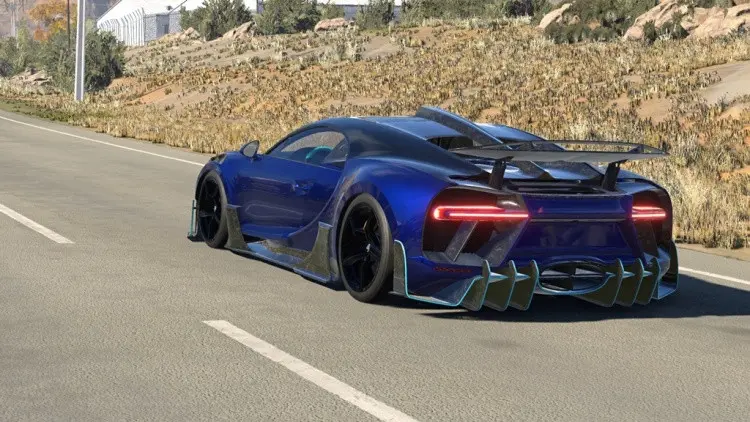
“My game got slow after I added mods” is true often enough that people blame every mod for every frame. It is also wrong often enough to be worth untangling. In BeamNG.drive, what you spawn costs performance; what sits in the mods folder mostly does not. Here is where the frames actually go, and what to do about it after the 0.40 update.
Installed is not the same as loaded
An enabled mod in the folder costs a little time at startup, while the game mounts it and reads its definitions, and it costs a thumbnail in the vehicle selector. It does not cost frames while you drive, unless it is a script that runs constantly or a UI app that redraws every frame. 0.40 made mounting dramatically faster (the developers’ test case dropped from three minutes to four seconds) and cut the vehicle selector from ten-plus seconds to one or two, so a long list of vehicle mods is now cheap to keep. Disabled mods cost nothing at all.
What does cost frames
- Every vehicle in the world. BeamNG simulates each spawned vehicle’s full soft-body structure, on the CPU, every physics step. A traffic mod that spawns twelve cars has just added twelve simulations. If your frame rate collapses with traffic on and recovers with it off, the limit is your CPU, not the mod’s quality. Reduce the traffic count before you blame anything else.
- Texture memory. A vehicle with 4K textures for every panel, plus a map with 4K ground textures, can exceed the video memory of an 8 GB card. The symptom is stutter when you turn the camera or spawn a second car, not a steady low frame rate. 0.40’s graphics settings let you lower texture quality; it is the one setting that trades almost no visual quality for a large memory saving at 1080p.
- Dense maps. Foliage and object count are a GPU cost. 0.40 simplified foliage collision on East Coast, Jungle Rock Island, Johnson Valley and Italy and added LOD fixes on several official maps; third-party maps from before 0.40 have not had that pass. A beautiful map mod that runs at half the frame rate of Italy is normal, not broken.
- UI apps. Each HUD app is a small web page redrawn constantly. Ten of them cost real time on weaker systems, and 0.40 rebuilt the official apps for performance. Remove the apps you do not look at from your HUD layout.
- Replay recording used to be expensive; 0.40 optimised it up to three times. If you record, update first.
The order to try things
- Turn traffic off and drive the same map alone. If the frame rate roughly doubles, the CPU is the limit; lower the traffic count and leave graphics alone.
- If the frame rate is low even alone, lower texture quality one step and watch for stutter to disappear.
- Try the new upscalers in 0.40 (DLSS on NVIDIA, FSR 3 or 4 on AMD and most cards, XeSS on Intel). They render at a lower resolution and scale up; at 1440p and above the quality loss is small and the gain is large.
- Switch between Direct3D 11, Direct3D 12 and Vulkan in the launcher. 0.40 moved Vulkan and D3D12 to bindless rendering, which lowers CPU overhead; on some systems one of them is clearly faster than the others, and only a test tells you which.
- Enable the low-performance notification (new in 0.40, it appears when the frame rate stays below 25) and use it to catch the moment a particular mod or action drags you down.
Mods that genuinely cost performance
- Traffic packs, for the reason above. Not the pack’s fault; it is what traffic is.
- Vehicles with absurd part counts, several thousand nodes and beams beyond a stock car’s. A truck and trailer combination is heavy by nature; a sports car with a stock-level node count that still halves your frame rate has something wrong in its jbeam.
- Maps without level-of-detail models, where every tree is full detail at any distance.
- Script mods that poll the whole scene every frame (some “realistic damage” or camera helpers). Disable them one at a time to find out.
What to keep doing
Keep mods zipped; the game reads them faster than loose folders. Clear the cache after a big round of changes, then let the first start take its time. Deactivate rather than delete the mods you are not using this month. And when a mod page says “lite version”, that is the author telling you they removed the 4K textures for people on 8 GB cards; it is the version to try first.
 How to read the BeamNG.drive log to find the mod that crashes your game
 BeamNG.drive mods not showing up? Eight fixes, in the order to try them
 BeamNG.drive 0.40 for modders: World Editor changes, the isInside flag, the occupant system, and the three UI breaking changes
 The BeamNG.drive modding pipeline: Blender and Collada, JBeam, materials, the World Editor and Lua